The Short Answer
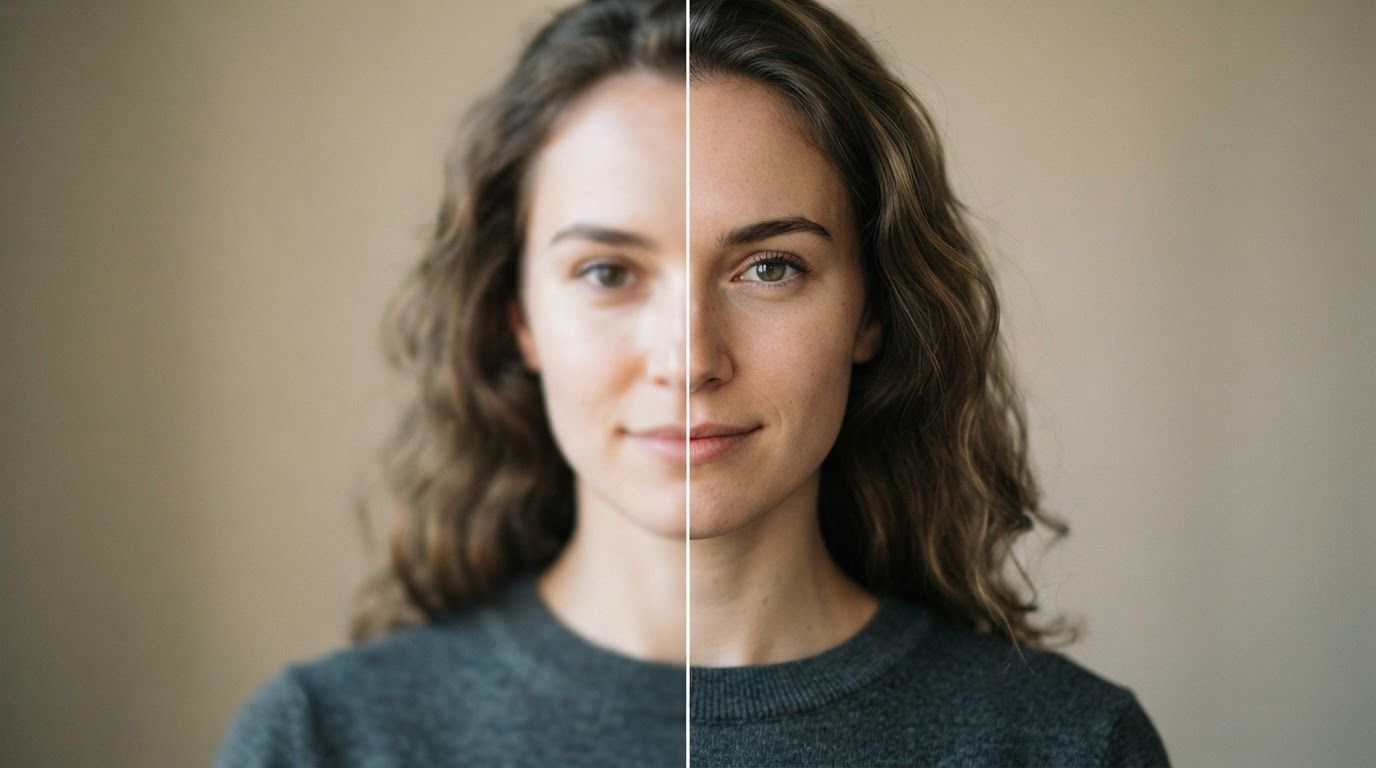
Manual "sharpen" filters in basic photo apps just increase edge contrast—they don't actually recover detail that got lost, so they hit a wall fast on a genuinely blurry photo. To make a blurry photo clear, you need an AI photo enhancer, which combines denoising, sharpening, and detail reconstruction to rebuild the image rather than just tweak it.
PixExtender's Photo Enhancer does this in your browser with one upload—no editing skills required. Here's exactly how it works, what kinds of blur it fixes best, and the steps to try it yourself.
Why Photos Turn Out Blurry (and Why It Matters)
"Blurry" isn't one problem—it's several, and knowing which one you have sets your expectations:
- Out-of-focus shots — the camera focused on the wrong point
- Motion blur — the subject or camera moved during the exposure
- Low resolution or over-compression — the image was small or heavily compressed (screenshots, old social media downloads, resized-up photos)
- Low-light noise — grain from a high ISO setting that reads as "softness"
AI enhancement is genuinely strong against the last two—compression softness and noise-driven blur—and can meaningfully improve mild out-of-focus and motion blur. It can't fully undo severe motion blur or a badly out-of-focus shot, because that information is simply gone. Setting the right expectation up front saves you a wasted upload.
How AI Photo Enhancement Actually Clears a Blurry Photo
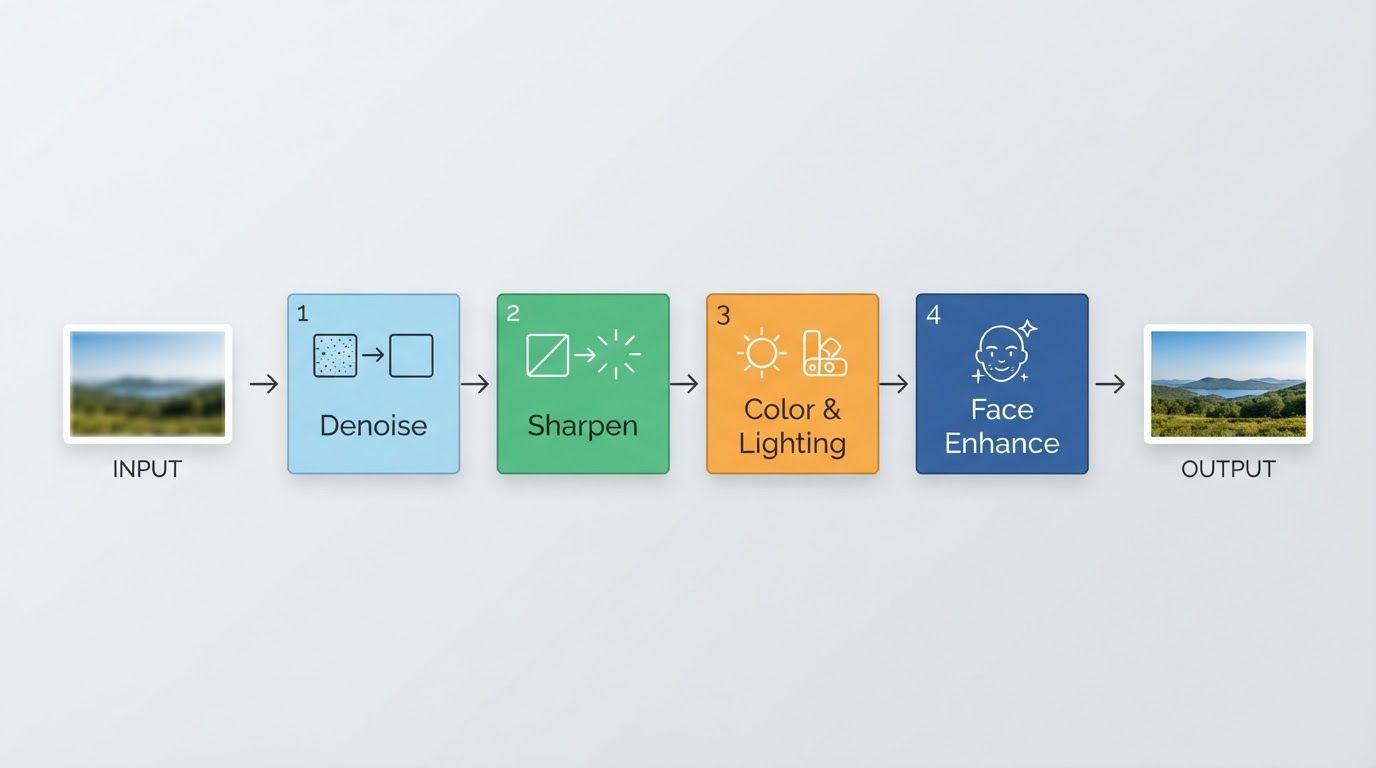
A photo enhancer isn't a single filter—it's a pipeline of models working together:
- Denoising strips out grain so real edges aren't hiding under noise
- Sharpening reconstructs soft edges and fine texture that interpolation or compression smeared away
- Color and lighting correction balances exposure and contrast, which often makes an image read as clearer even before sharpening
- Face enhancement specifically restores clarity to blurry faces and features—usually the part people care about most
Because these run together, the result looks naturally sharper rather than artificially "crunchy" the way an aggressive manual sharpen filter can look.
Step-by-Step: How to Make a Blurry Photo Clear
Here's the process on PixExtender's Photo Enhancer:
Step 1: Upload Your Photo
Go to PixExtender, open the Photo Enhancer, and upload your image (JPG, PNG, or WEBP).
Step 2: Let the AI Analyze the Image
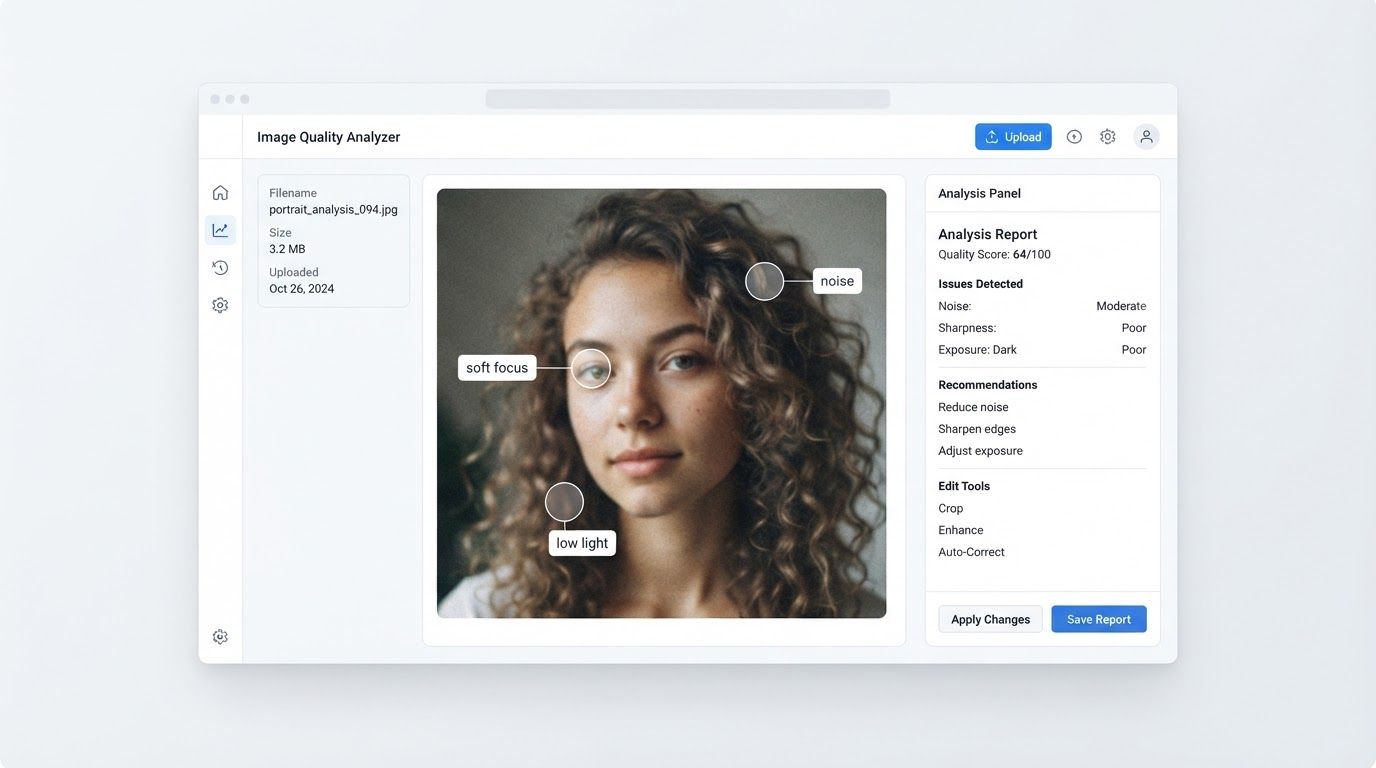
The enhancer automatically detects noise, blur, and lighting issues in your specific photo—no manual sliders to fiddle with.
Step 3: Generate
Click "Enhance". Processing takes just a few seconds.
Step 4: Download
Compare the result to your original, then download in your preferred format.
Total time: under a minute.
Which Kind of Blur Can (and Can't) Be Fixed
| Blur type | Fixable by AI enhancement? | Notes |
|---|---|---|
| Soft focus / mild blur | Yes | Recovers texture and edge detail well |
| Compression artifacts / low-res softness | Yes | One of the strongest use cases |
| Grainy, noisy low-light photos | Yes | Denoising specifically targets this |
| Moderate motion blur | Partially | Visibly improved, not perfectly restored |
| Severe motion blur or extreme out-of-focus | Limited | The underlying detail was never captured |
If your photo falls in the last row, an enhancer will still help somewhat, but don't expect a miracle—no AI can invent detail that was never recorded.
When You Need a Different Tool
A blurry photo is a quality problem, but not every "bad" photo is the same problem:
- The photo is also too small for what you need (printing, a larger display) → that's a resolution job for an image upscaler. See How to Make an Image Bigger Without Losing Quality, and the full comparison in Image Upscaler vs Photo Enhancer.
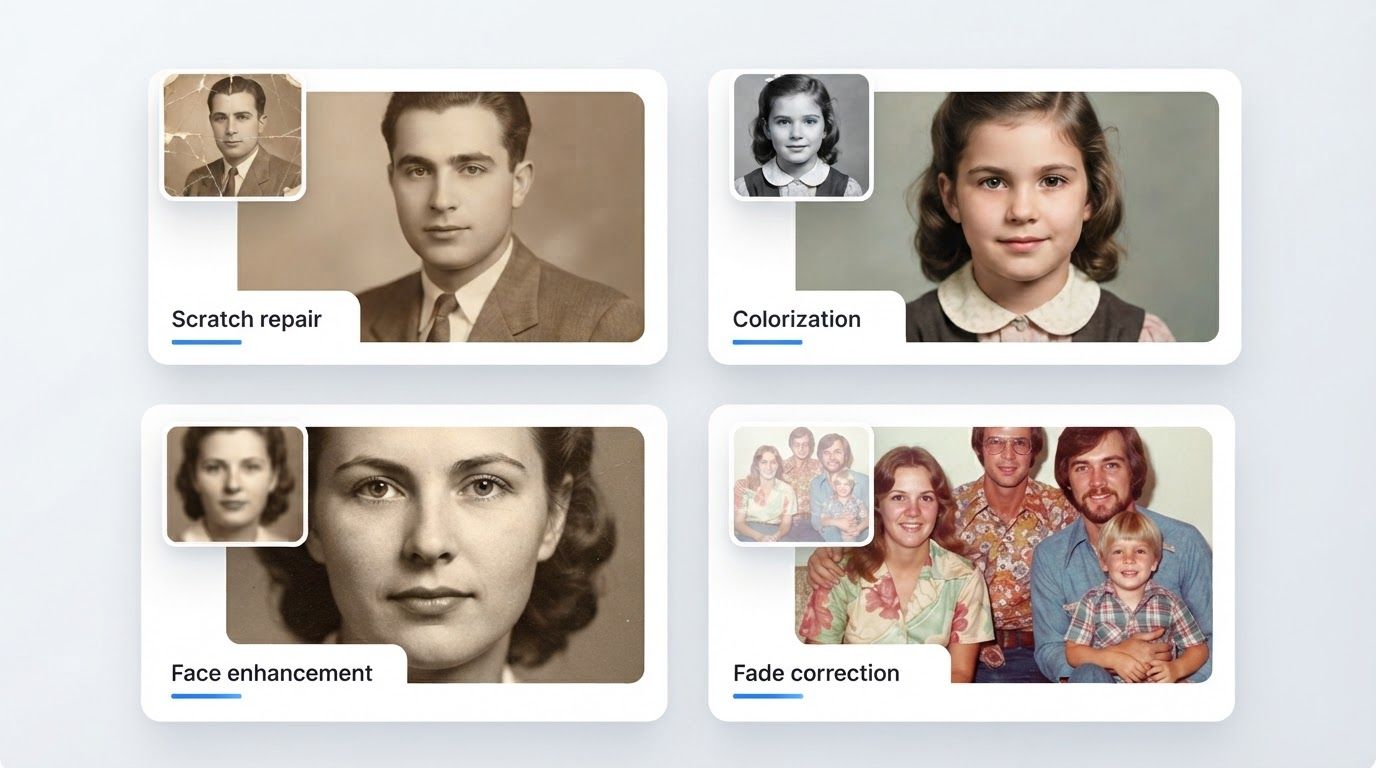
- The photo is old, scratched, torn, or faded, not just soft → start with Photo Restoration instead. See How to Restore Old Photos.
Unsure which of the four tools fits your photo? Read Upscale vs Enhance vs Extend vs Restore for the full decision guide.
Pro Tips for the Best Results
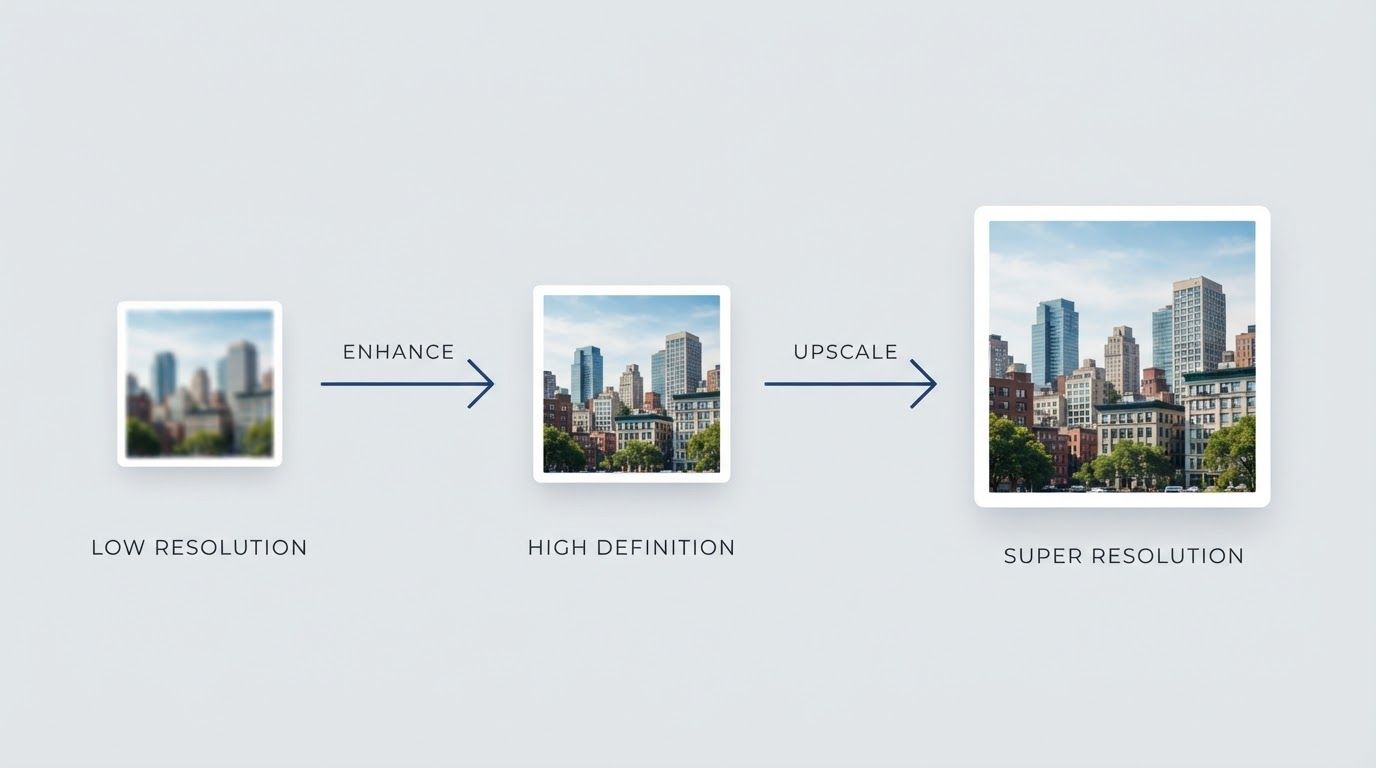
- Enhance before you upscale. If you also need the photo bigger, clean it up first—upscaling a noisy or blurry photo just enlarges the flaws along with the image.
- Don't stack enhancements. Running the same photo through repeatedly can start to look over-processed. One well-run pass is usually enough.
- Faces benefit the most from a careful pass—if the photo's main subject is a face, that's where you'll see the clearest improvement.
- Keep a copy of the original so you can compare and pick whichever version actually looks best for your use case.
Frequently Asked Questions
Can AI make a blurry photo clear for free?
Yes. PixExtender's Photo Enhancer offers free trial credits with no credit card required, so you can test it on your own blurry photo before deciding on a plan.
Will this work on an old blurry photo?
It depends on what's wrong with it. If the photo is simply soft or noisy, the enhancer helps directly. If it's also scratched, torn, faded, or in need of colorizing, start with Photo Restoration instead—see How to Restore Old Photos.
Does enhancing a photo reduce its quality?
No—enhancement is specifically built to improve perceived quality: less noise, more sharpness, better color. Many enhancers also enlarge the image modestly as part of the process, which is a bonus, not a downside.
What's the difference between enhancing and upscaling a blurry photo?
Enhancing targets quality—removing noise and recovering sharpness at roughly the same size. Upscaling targets size—adding resolution at a factor you choose. If your photo is blurry, enhance; if it's also too small, add an upscale step afterward. Full breakdown: Image Upscaler vs Photo Enhancer.
Can it clear blur on a photo with faces in it?
Yes, and faces are often where AI enhancement makes the most visible difference, since it includes dedicated face-detail reconstruction alongside general sharpening.
How long does it take to clear a blurry photo?
Typically just a few seconds per photo once uploaded—there's no manual retouching involved.
Try It on Your Own Photo
Stop settling for a soft, disappointing shot. Upload it and see how much clearer AI enhancement can make it:
Start free with PixExtender's Photo Enhancer → PixExtender.com
Not sure which tool your photo actually needs? Read the full guide: Upscale vs Enhance vs Extend vs Restore.