Four Tools, One Confusing Question
Upscaler. Enhancer. Extender. Restorer. Open any AI photo platform and you'll meet all four—each promising to "make your image better." So which one do you actually need?
The confusion is understandable. They overlap in marketing language, and some even run on similar technology under the hood. But they solve four genuinely different problems. Pick the wrong one and you'll waste time, credits, and end up disappointed with the result.
This guide clears it up for good. We'll start with a 10-second decision table, explain each tool in plain English, untangle the pairs that trip people up most, and finish with the deeper technology behind each. Everywhere along the way, you can try the matching tool on PixExtender—one platform that offers all four.
The 10-Second Decision Table
If you only read one section, read this one.
| Your goal | The tool you need | Try it |
|---|---|---|
| Add more scene / change the aspect ratio (make it wider, taller, or square) | Image Extender | Image Extender |
| Make the image bigger with more pixels for printing or 4K | Image Upscaler | Image Upscaler |
| Fix a blurry, noisy, or dull photo so it looks sharper and cleaner | Photo Enhancer | Photo Enhancer |
| Repair an old, scratched, faded, or torn photo (and colorize it) | Photo Restoration | Photo Restoration |
The simplest way to remember the four:
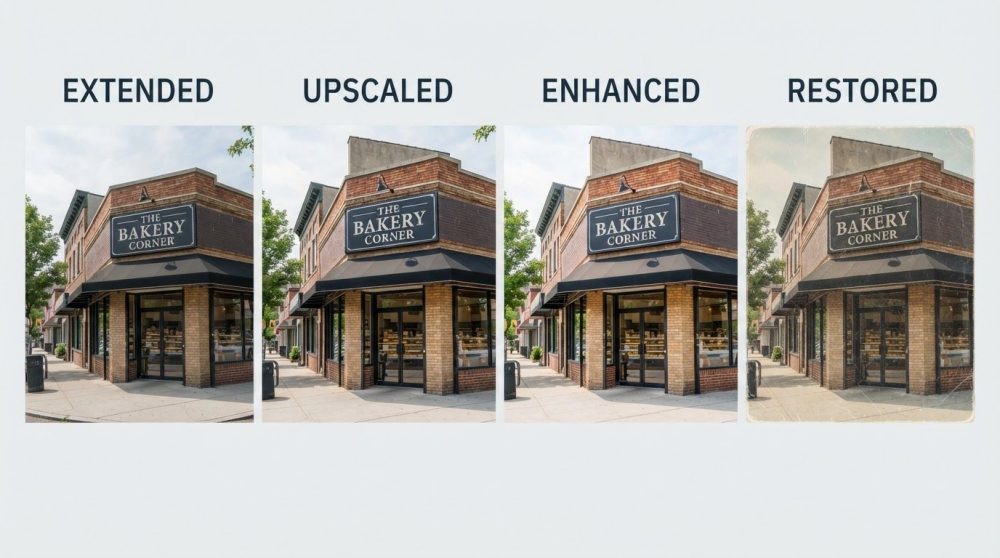
- Extend = more scene (new content on the sides)
- Upscale = more pixels (same picture, larger, by a factor you choose)
- Enhance = more quality (cleaner and sharper—size may grow a little, but that's not the point)
- Restore = fix damage (old photos made new)
Keep that framing in mind and the rest of this guide will click into place.
The Four Tools, Explained Simply
1. Image Extender — Add More Scene
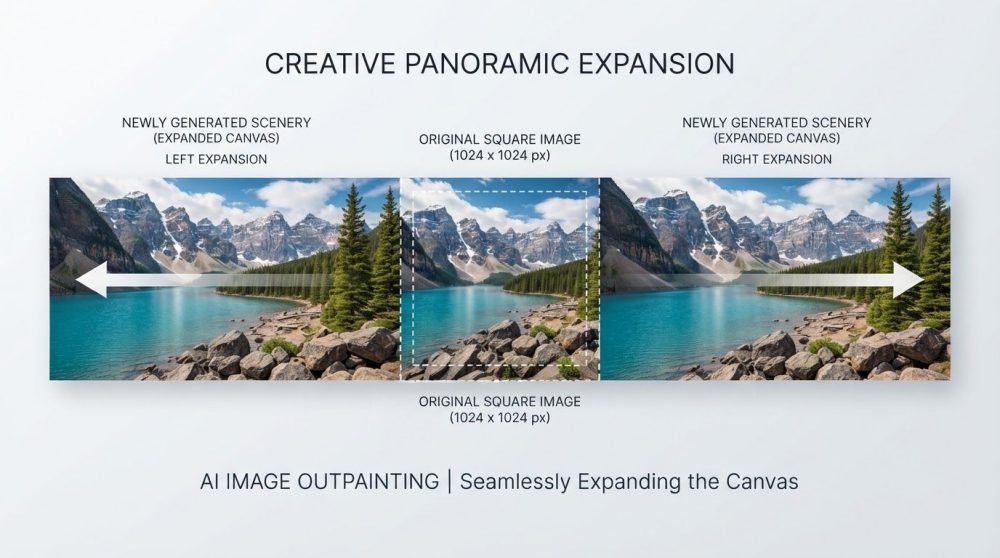
An image extender (also called AI outpainting, image expander, or "uncrop") grows your picture beyond its original edges. It invents brand-new content—more sky, more background, more table around a product—so you can change the aspect ratio without cropping anything out.
Use it when a vertical photo needs to become a horizontal banner, when a product shot needs breathing room, or when Instagram, YouTube, or a wallpaper demands a different shape.
Key idea: it creates content that never existed in your original photo.
Try it with PixExtender's Image Enlarger, or process many at once with the Batch Extender.
2. Image Upscaler — Add More Pixels
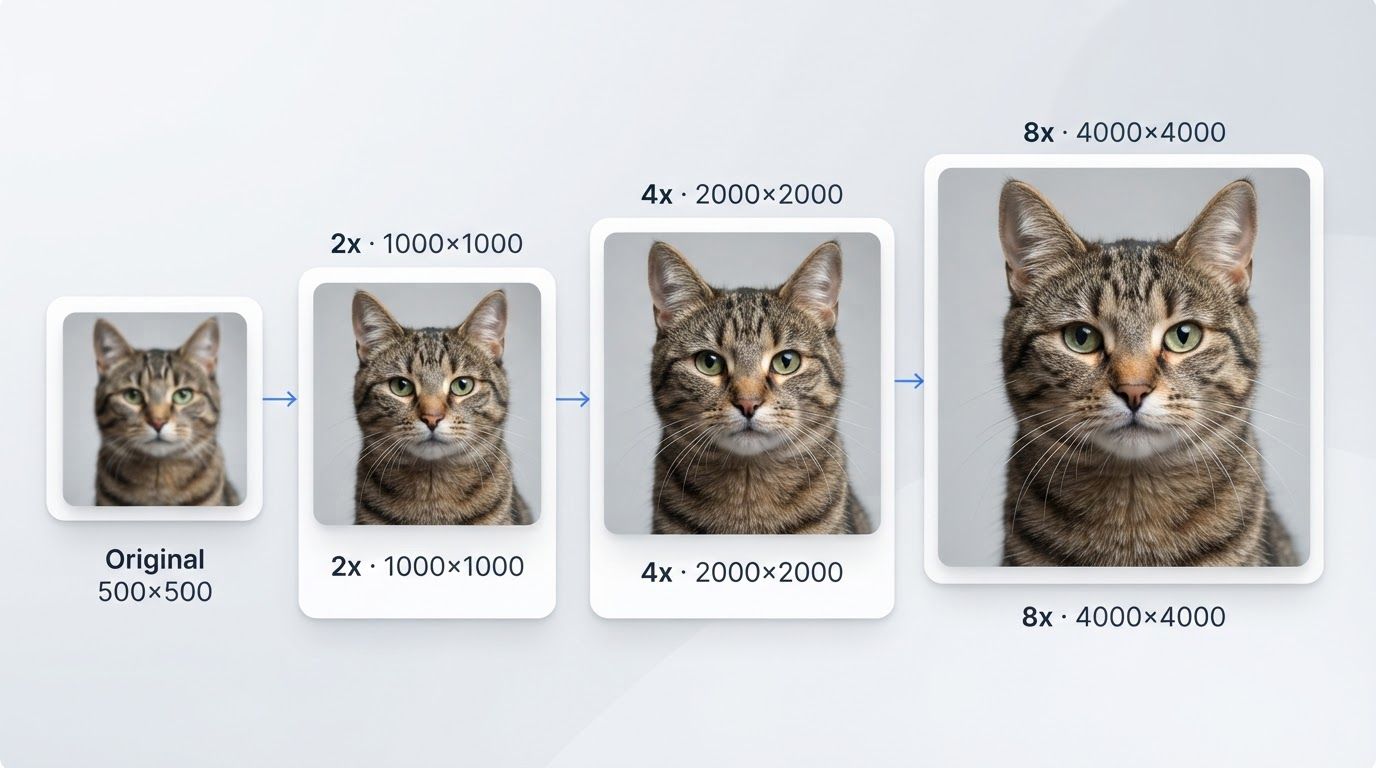
An image upscaler increases the resolution of your existing image—2x, 4x, sometimes 8x—so the same picture becomes physically larger and sharper. The composition doesn't change and no new scene is invented; there are simply more pixels, intelligently filled in so the result doesn't look blurry or blocky.
Use it when you need to print a small photo large, prepare an image for a 4K screen, or rescue a low-resolution product shot.
Key idea: same picture, more pixels, bigger size.
Try PixExtender's Image Upscaler.
3. Photo Enhancer — Add More Quality
A photo enhancer improves how good a photo looks. It removes noise, sharpens soft details, corrects color and lighting, and can fix faces. Many enhancers also enlarge the image somewhat along the way (often around 2x), but that's a bonus—the goal is quality, not hitting a specific size or resolution target the way an upscaler does.
Use it when a photo is blurry, grainy, too dark, or just "flat," and you want it social-media ready.
Key idea: better-looking pixels—quality first, with some enlargement often thrown in.
Try PixExtender's Photo Enhancer.
4. Photo Restoration — Fix the Damage
Photo restoration is a specialist. It targets physical damage in old or scanned photos—scratches, tears, creases, fading, missing chunks—and can add color to black-and-white images. It's not about a modern photo being "not good enough"; it's about a treasured photo being damaged.
Use it for grandparents' portraits, faded family albums, torn prints, or black-and-white photos you'd love to see in color.
Key idea: repair damage, bring old photos back to life.
Try PixExtender's Photo Restoration.
The Pairs People Confuse Most
Three overlaps cause almost all the confusion. Here's the short version of each—follow the links for the full deep-dive comparisons.
Upscaler vs Enhancer — Size vs Quality
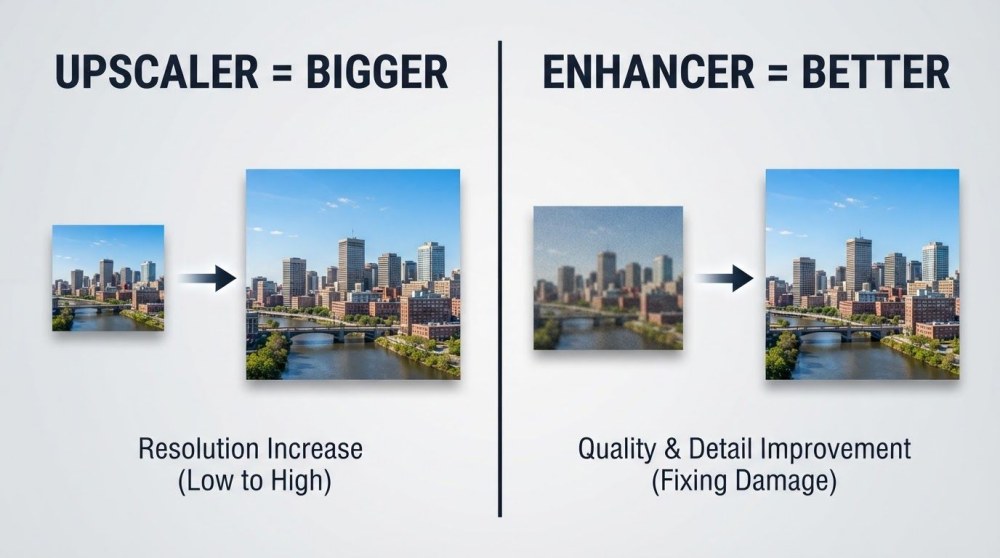
Both make a photo "clearer," which is exactly why they're mixed up. The difference:
- Upscaler is built for size—you pick how much bigger (2x/4x/8x) and it can push to very large resolutions.
- Enhancer is built for quality—cleaner, sharper, better color. It may enlarge a little too, but size isn't the goal and you don't control the factor.
Many photos benefit from both, but the intent is different. See the full breakdown: Image Upscaler vs Photo Enhancer.
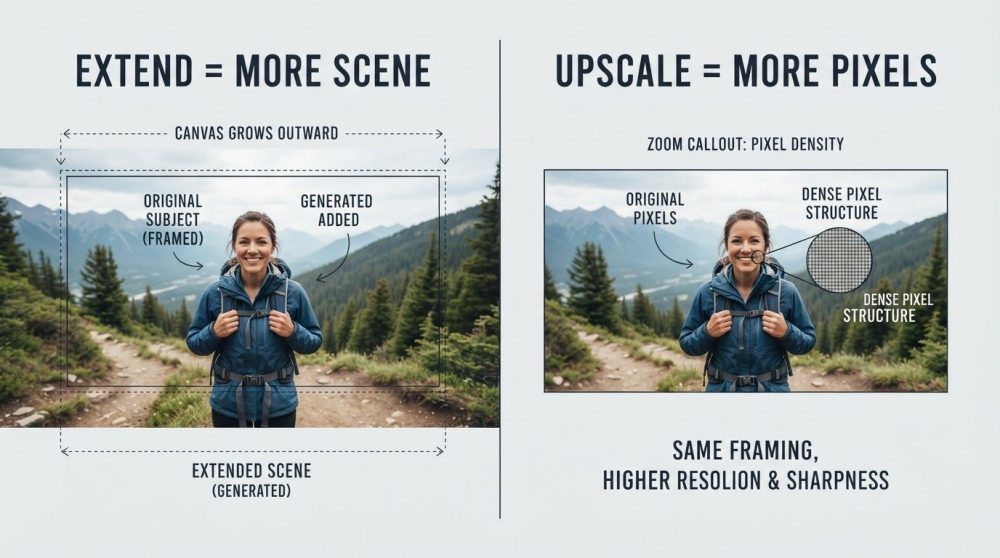
Extender vs Upscaler — More Scene vs More Pixels
Both can "make an image bigger," but in opposite ways:
- Extender adds new content to the sides and changes the composition.
- Upscaler keeps the same content and just adds resolution.
Full comparison: Image Extender vs Image Upscaler.
Enhancer vs Restoration — Improve vs Repair
- Enhancer polishes photos that are basically fine but low quality (usually modern).
- Restoration repairs photos that are damaged (usually old), including scratch removal and colorization.
If your photo has scratches, tears, or has faded with age, you want restoration, not enhancement.
Going Deeper: The Technology Behind Each
Now that the "what" is clear, here's the "how"—the technical difference that explains why each tool behaves the way it does.
| Tool | Underlying technology | What it does to your pixels |
|---|---|---|
| Extender | Outpainting (generative diffusion) | Generates new pixels beyond the original border, matching style and lighting |
| Upscaler | Super-resolution | Multiplies existing pixels and reconstructs fine detail so enlargement stays sharp |
| Enhancer | Denoising + sharpening + color/face models | Rebuilds existing pixels to look cleaner (often with a modest size boost as a bonus) |
| Restoration | Inpainting + repair + colorization | Reconstructs missing/damaged regions and adds color |
Two of these—extension and restoration—actually invent content: outpainting imagines what lies beyond the frame, while inpainting reconstructs what's been lost inside it. The other two—upscaling and enhancement—work with what's already there, either multiplying pixels or cleaning them up. That's the deepest distinction, and it's why you can't substitute one for another: an upscaler will never widen your composition, and an extender will never sharpen a blurry face.
Can You Use Them Together? Yes—In Order
These tools aren't rivals; they're a pipeline. A common professional workflow looks like this:
- Restore first if the photo is old or damaged—repair before you build on it.
- Enhance next to clean up noise, sharpen, and fix color.
- Upscale to reach the resolution you need for print or large screens.
- Extend last to reshape the canvas for whatever platform it's going to.
Doing it in this order means each step works on the best possible input. Because PixExtender offers all four tools in one place, you can move an image through the whole chain without juggling multiple apps or re-exporting between websites.
Why PixExtender
Most platforms specialize in one of these jobs and make you go elsewhere for the rest. PixExtender brings all four together—Image Enlarger and Batch Extender for expansion, Image Upscaler for resolution, Photo Enhancer for quality, and Photo Restoration for old photos—in one browser-based workspace with no software to install.
- ✅ All four AI photo tools under one account
- ✅ Up to 4K output with clean, artifact-free results
- ✅ Batch processing for high-volume work
- ✅ Free trial credits—no credit card required
Frequently Asked Questions
What's the difference between upscaling and enhancing a photo?
Upscaling is about size: it raises resolution so the picture becomes larger, and you choose the factor (2x/4x/8x). Enhancing is about quality: less noise, more sharpness, better color and faces. Enhancers often enlarge the image somewhat too, but that's a side effect rather than the purpose. Many workflows use both—enhance first, then upscale.
Is an image extender the same as an upscaler?
No. An extender adds new content beyond the original borders to change the aspect ratio (outpainting), while an upscaler keeps the same picture and just adds resolution. Extenders change composition; upscalers change size only.
Should I use a photo enhancer or photo restoration for an old photo?
If the old photo is damaged—scratches, tears, fading, missing areas—use restoration, which is built to repair that damage and can colorize black-and-white images. If it's simply low quality but intact, a photo enhancer may be enough. For badly aged photos, restore first, then enhance.
Can one tool do everything?
Not well. Each tool is optimized for a specific job, and using the right one gives dramatically better results. The good news is you can chain them: on PixExtender you can restore, enhance, upscale, and extend the same image in one place, in the right order.
Which tool makes an image bigger without losing quality?
For pure size increase, use an image upscaler—it adds resolution while preserving sharpness. If you also want a different shape (more width or height), use an image extender to add new scene. Learn more in Image Extender vs Image Upscaler.
Pick the Right Tool—Then Try It Free
You now have a simple mental model: extend for more scene, upscale for more pixels, enhance for more quality, restore to fix damage. Match your goal to the tool, and you'll get the result you actually wanted the first time.
Ready to try? Start with the right tool on PixExtender:
- Image Enlarger — expand and reshape
- Image Upscaler — increase resolution
- Photo Enhancer — sharpen and clean up
- Photo Restoration — revive old photos
Start free with PixExtender → PixExtender.com