The Short Answer
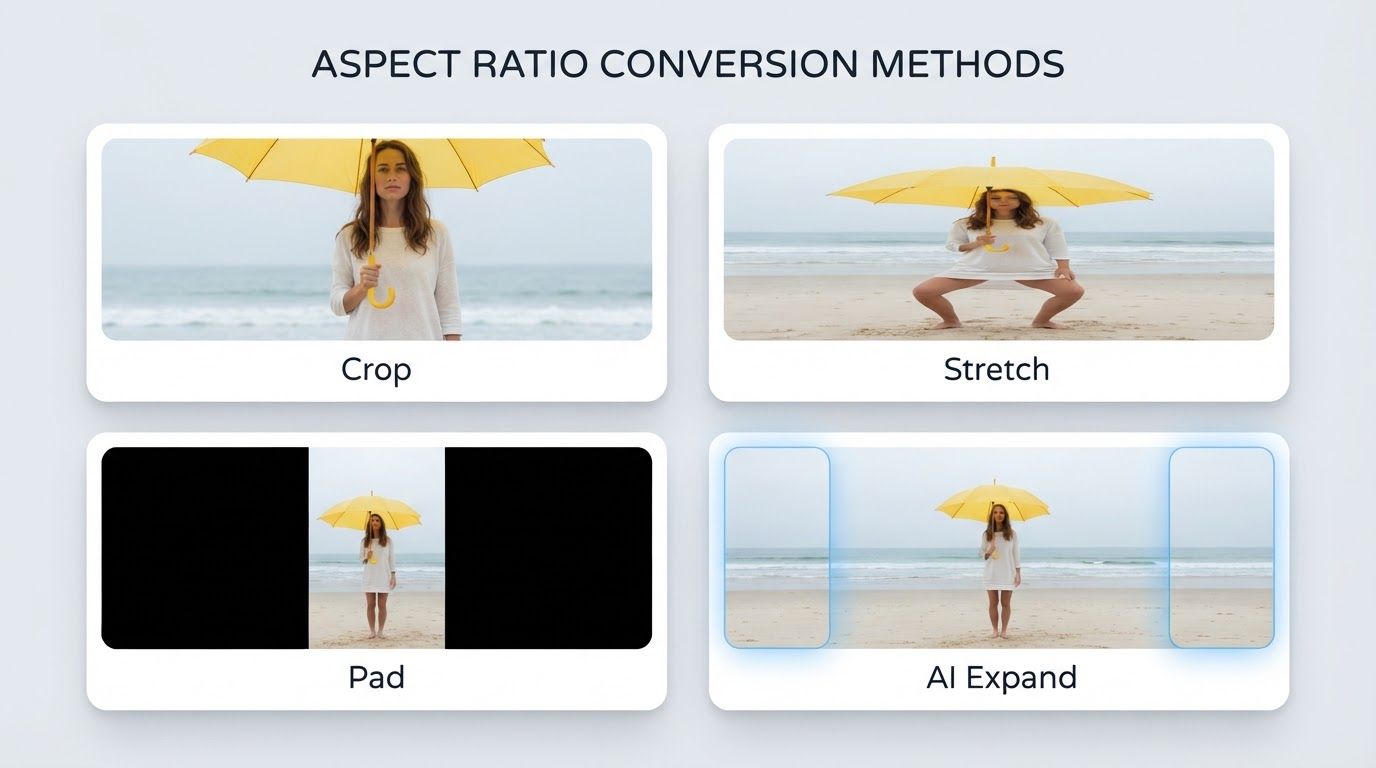
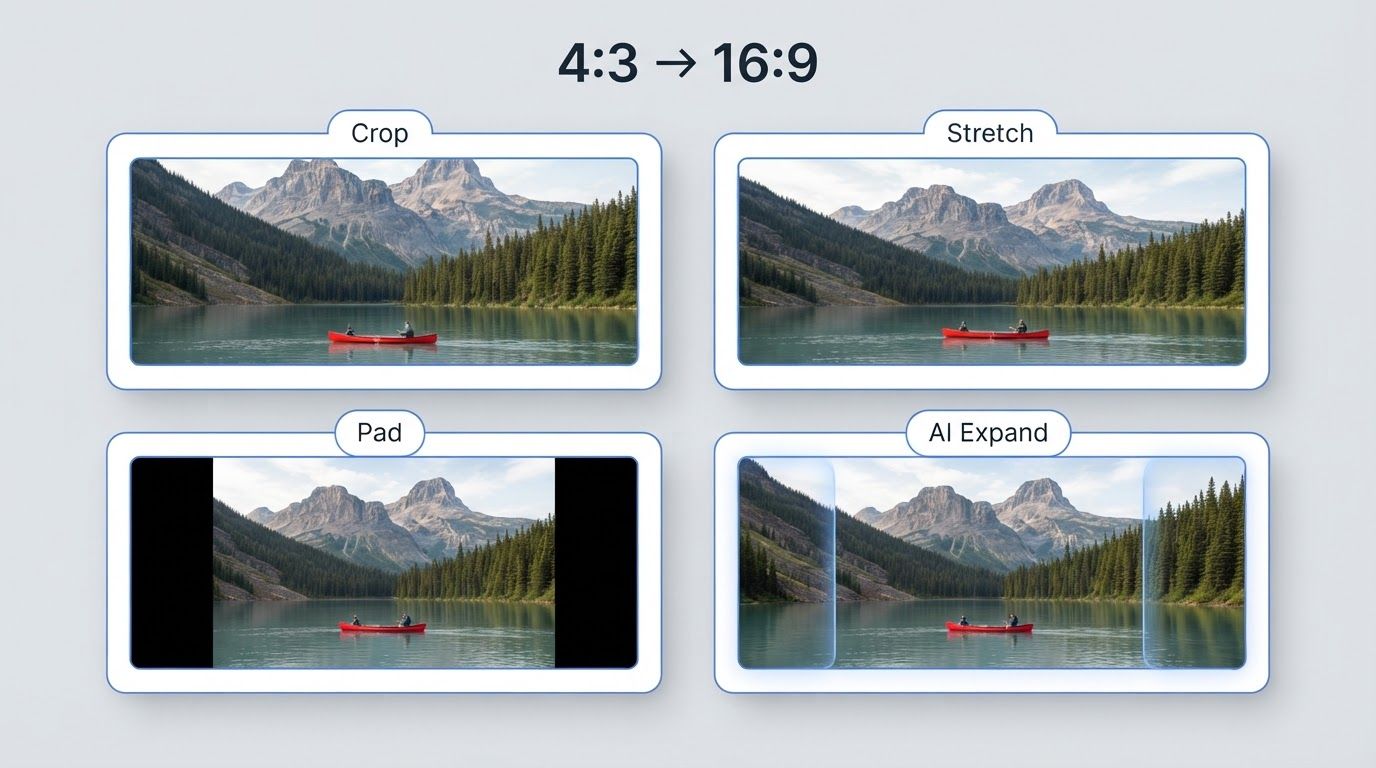
There are four ways to change a photo's aspect ratio: crop it (cut content away), stretch it (distort it to fit), pad it (add bars around it), or AI-expand it (generate new scene beyond the edges). The first three each sacrifice something—content, proportions, or screen space. AI expansion is the only method that keeps your entire photo, undistorted, while filling the new shape completely.
That's exactly what PixExtender's Image Enlarger does: pick a target ratio, and AI generates matching background to fill the difference. Below is how all four methods compare, and when each one makes sense.
Aspect Ratio, and Why It Keeps Getting in Your Way
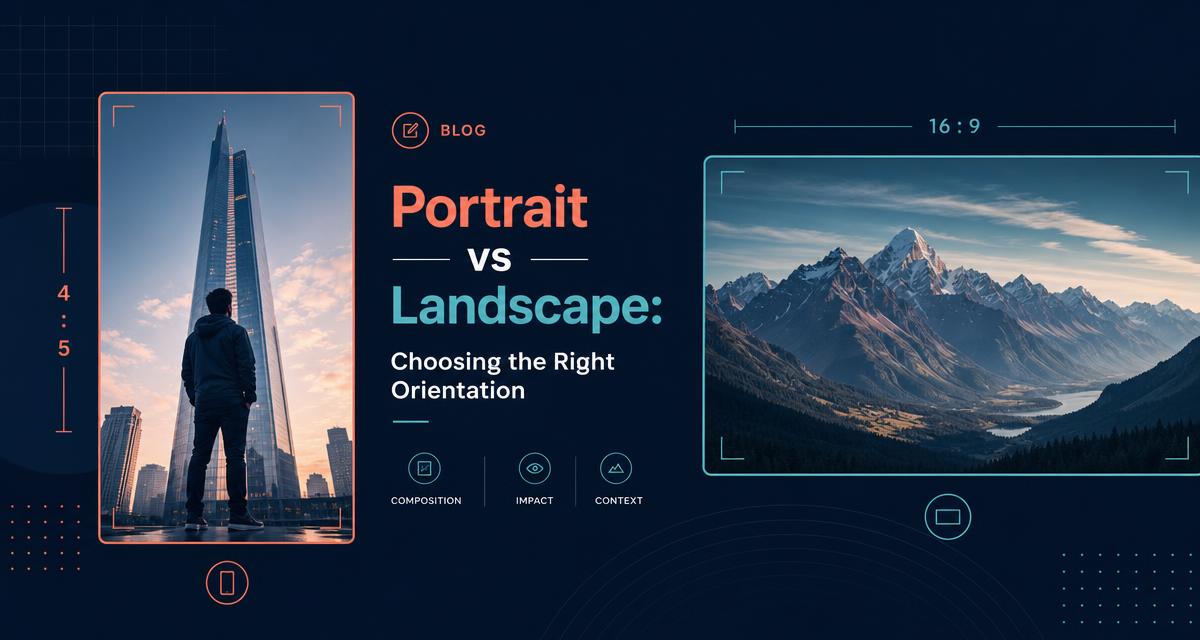
Aspect ratio is the proportion between a photo's width and height—3:2, 16:9, 4:5. The trouble is that every camera and every destination has its own opinion:
| Ratio | Where you'll need it | Recommended pixels |
|---|---|---|
| 1:1 | Instagram square, profile grids | 1080×1080 |
| 4:5 | Instagram feed (vertical) | 1080×1350 |
| 9:16 | Stories, Reels, TikTok, Shorts | 1080×1920 |
| 16:9 | YouTube videos & thumbnails, presentations | 1280×720 minimum |
| 2:3 | Pinterest pins, book covers | 1000×1500 |
| 3:2 | Most cameras; 4×6" prints | — |
| 4:3 | Most phone cameras; iPads | — |
| 5:4 | 8×10" prints | — |
Your phone shoots 4:3, your camera shoots 3:2, Instagram wants 4:5, YouTube wants 16:9, and the print lab wants 5:4. No single ratio survives all of these—so every photo that travels between platforms needs its ratio changed somehow.
The Four Methods, Honestly Compared
Method 1: Crop — Simple, but You Lose Content
Cropping cuts a window of the target ratio out of your photo and throws away everything outside it. It's built into every tool (Photoshop's Crop tool, your phone's Photos app, Canva) and never distorts the image.
The cost is content, and it's bigger than most people expect. Printing a standard 3:2 camera photo as an 8×10 cuts away about 17% of the image width—elbows, hair, and background context routinely go missing. Hollywood learned this lesson decades ago: converting widescreen films to old 4:3 TVs ("pan and scan") could discard up to 45% of the frame, and directors fought it publicly because it destroyed their composition.
Use crop when the edges are genuinely expendable, or you're only trimming a little.
Method 2: Stretch — Fits Everything, Distorts Everything
Non-uniform scaling squeezes or stretches the photo to the new proportions. Everything stays "in" the picture, but nothing keeps its true shape: faces widen, circles become ovals, text becomes hard to read. It instantly reads as unprofessional.
Use stretch only for abstract textures or pattern backgrounds—no people, no products, no geometry—and only for small adjustments (under roughly 5%, where the eye can't detect it).
Method 3: Pad (Letterbox) — Safe, but Wastes the Frame
Padding places your untouched photo inside the target canvas and fills the leftover space with bars—black bars above and below (letterboxing) or on the sides (pillarboxing). Nothing is lost, nothing is distorted.
The problem is everything the bars don't do: they waste screen space and look out of place on platforms designed to be full-bleed. TikTok, for instance, plays non-9:16 videos with black bars, and such posts typically underperform full-frame ones.
Use padding when the exact original frame is non-negotiable—archival images, film stills, legal documentation.
Method 4: AI Expand (Outpainting) — Keep Everything and Fill the Frame
AI expansion works in the opposite direction from cropping: instead of shrinking the photo to fit the ratio, it grows the canvas and generates new, matching scenery in the added space. The AI reads the edges of your photo—lighting, textures, perspective—and continues the scene outward, a technique called outpainting (explained in depth in How to Extend an Image).
This approach has become the industry standard for ratio changes: Photoshop calls it Generative Expand, Canva calls it Magic Expand, and recent Pixel and Galaxy phones build it into their photo editors. The result is a photo that keeps every original pixel, stays perfectly proportioned, and fills the target shape edge to edge.
The honest caveat: the added areas are AI-generated predictions. Plain and textured backgrounds (sky, walls, grass, bokeh) extend almost flawlessly; complex structures at the border can occasionally need a second generation to get right.
Side by Side
| Keeps all content | No distortion | Fills the frame | |
|---|---|---|---|
| Crop | ❌ | ✅ | ✅ |
| Stretch | ✅ | ❌ | ✅ |
| Pad | ✅ | ✅ | ❌ |
| AI Expand | ✅ | ✅ | ✅ |
Each traditional method is missing exactly one leg. AI expansion is the only one standing on all three.
Step-by-Step: Change Aspect Ratio Without Cropping
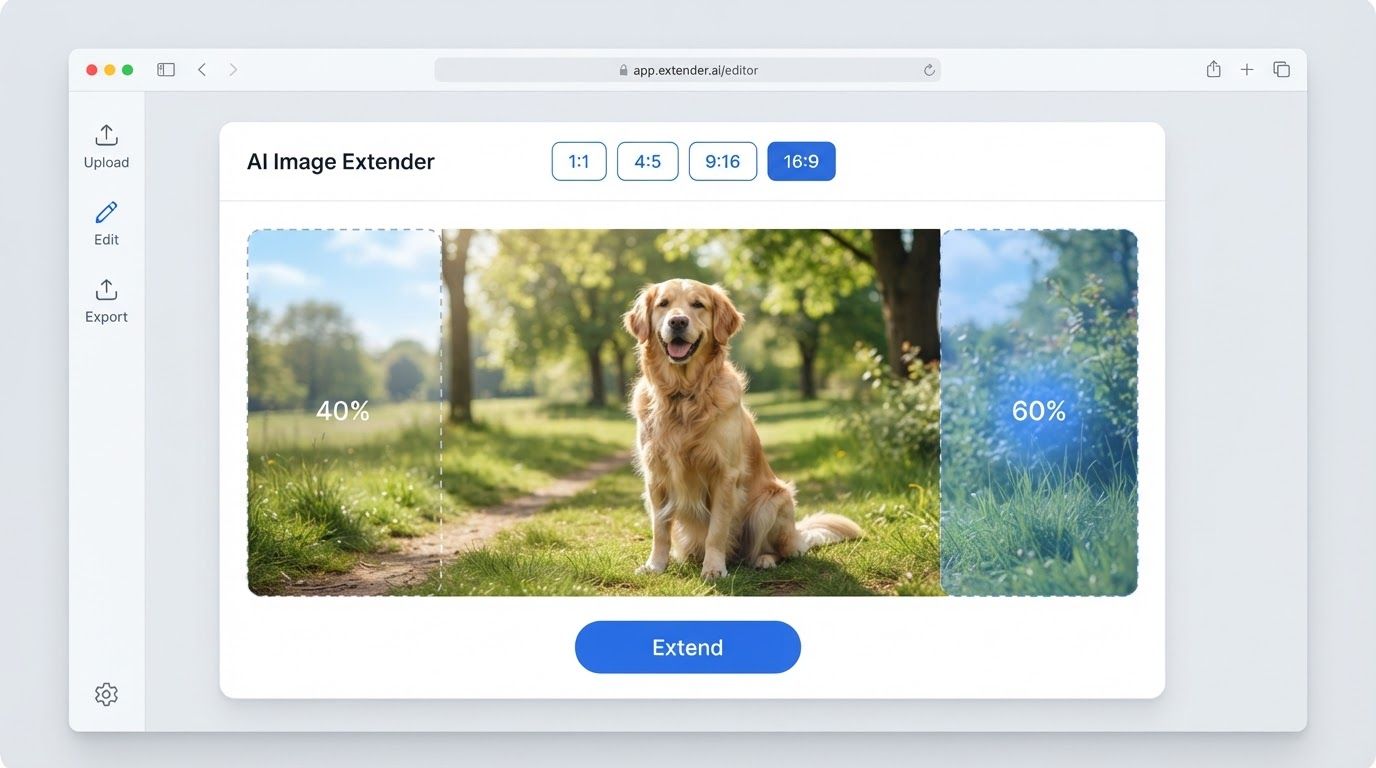
Here's the AI-expand workflow in PixExtender's Image Enlarger:
Step 1: Upload Your Photo
Open the Image Enlarger and upload your image (JPG, PNG, or WEBP).
Step 2: Pick the Target Ratio
Choose a preset for your destination—16:9 for YouTube, 4:5 or 1:1 for Instagram, 9:16 for Stories—or set custom dimensions. Your original photo stays intact; you're choosing how much new canvas to add and where.
Step 3: Generate
Click to extend. The AI analyzes your photo's edges and fills the new space with scenery that matches the lighting, texture, and perspective of the original.
Step 4: Review and Download
Check the generated areas—regenerate if a complex edge came out imperfect—then download your photo in its new ratio, full-frame and undistorted.
Converting a whole batch for multiple platforms? The Batch Extender applies the same ratio change to up to 20 images at once.
Which Method for Which Job?
- Phone photo → Instagram 4:5 with the subject centered: crop is fine—you're trimming little.
- Landscape photo → vertical 9:16 Story: AI expand—cropping a landscape to vertical would gut it.
- Product shot → wide website banner: AI expand to add background room around the product.
- Film still or historical archive image: pad—the original frame is the point.
- Seamless texture → slightly different proportions: stretch, sparingly.
- Same photo → five platforms: AI expand each version from the original, so every format is full-frame. (Batch Extender does this in one run.)
Frequently Asked Questions
Can I change the aspect ratio of a photo without cropping it?
Yes—two ways. Padding keeps the whole photo but adds bars; AI expansion keeps the whole photo and fills the frame by generating matching scenery beyond the original edges. For full-bleed social and web use, expansion is the one that looks native.
Does changing the aspect ratio reduce image quality?
Cropping reduces resolution (you keep fewer pixels), and stretching visibly degrades the image. Padding and AI expansion leave your original pixels untouched—expansion adds resolution, since the canvas grows. If your photo is also too small overall, that's a different fix: see Image Extender vs Image Upscaler.
What aspect ratio should I use for Instagram?
4:5 (1080×1350) for feed posts—it takes up the most screen space—1:1 for a tidy grid, and 9:16 (1080×1920) for Stories and Reels. Full details in our Instagram post size guide.
Is stretching an image ever acceptable?
Almost never for photos of people, products, or anything with recognizable geometry. The narrow exception is abstract or textured backgrounds stretched by only a few percent, where distortion isn't perceptible.
How does the AI know what to add?
Outpainting models are trained on millions of images, so they learn how scenes typically continue—how a beach meets sky, how a wall extends, how bokeh falls off. The AI matches your photo's lighting and perspective at the border and continues outward. The generated content is a plausible continuation, which is why plain backgrounds work best.
Can I change the aspect ratio of many photos at once?
Yes. PixExtender's Batch Extender processes up to 20 images with the same target ratio in one run—useful for adapting a product catalog or a shoot to a new platform format.
Reshape Your Photos Without Sacrificing Them
Changing aspect ratio used to mean choosing what to lose: content, proportions, or screen space. AI expansion removes that trade-off—keep everything in the shot and still fill any format perfectly.
Try it free with PixExtender's Image Enlarger → PixExtender.com
Curious how extending compares to the other AI photo tools? Read Upscale vs Enhance vs Extend vs Restore.