Both Make Images "Bigger"—In Opposite Ways
You want a bigger image, so you search for a tool—and immediately hit two very different options: an image extender and an image upscaler. Both claim to enlarge your photo. But they do it in fundamentally opposite ways, and choosing wrong gives you the wrong result entirely.
The one-line answer:
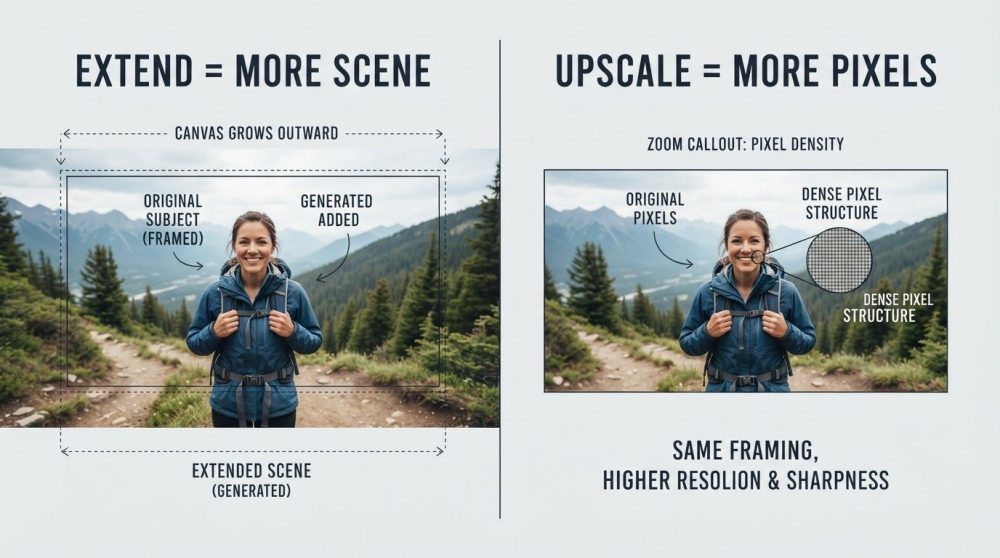
An extender adds new content to change the shape of your image. An upscaler adds pixels to keep the same picture at a higher resolution.
Or even shorter: extender = more scene, upscaler = more pixels. Let's make that concrete, then walk through exactly when to use each—and clear up a naming trap that confuses almost everyone. You can try both on PixExtender: the Image Extender for extending and the Image Upscaler for upscaling.
What an Image Extender Does
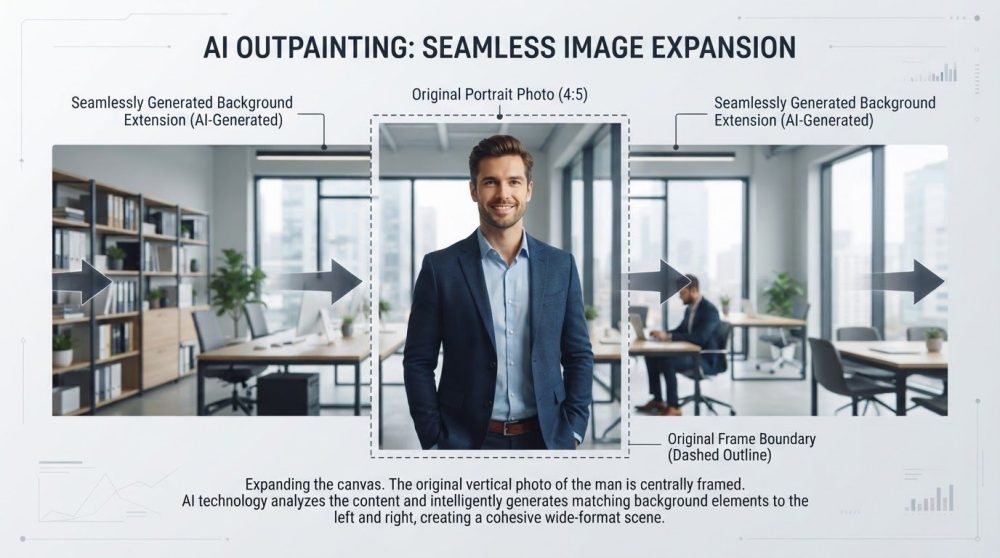
An image extender grows your picture beyond its original borders. Using a technique called outpainting, AI analyzes your photo's edges—colors, lighting, textures, perspective—and generates entirely new content to fill the added space. A square photo becomes a wide banner; a portrait gains sky above and ground below.
The composition changes on purpose. You're not just making the file bigger—you're adding scene that was never in the original shot.
Use an extender when you need to:
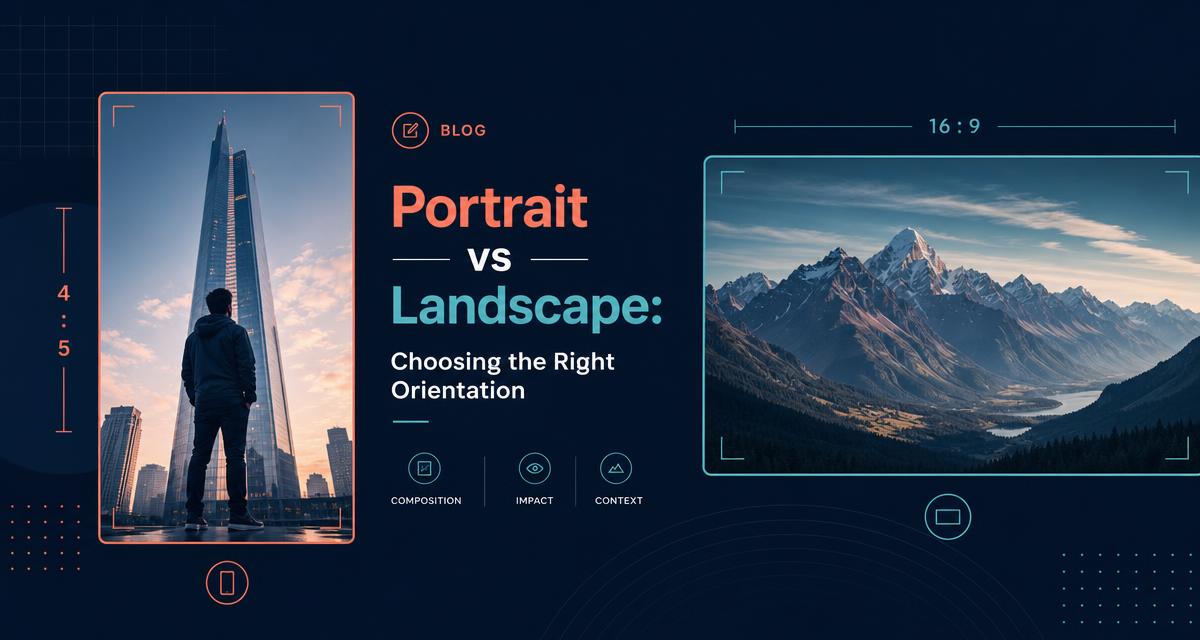
- Change the aspect ratio (square → 16:9, portrait → landscape) without cropping
- Add background room around a subject or product
- Fit one photo to many platforms (Instagram, YouTube, a wide wallpaper)
- Create space at the top or side for text and logos
Key idea: it creates content that didn't exist in your original.
Try it: PixExtender Image Enlarger, or handle many at once with the Batch Extender.
What an Image Upscaler Does
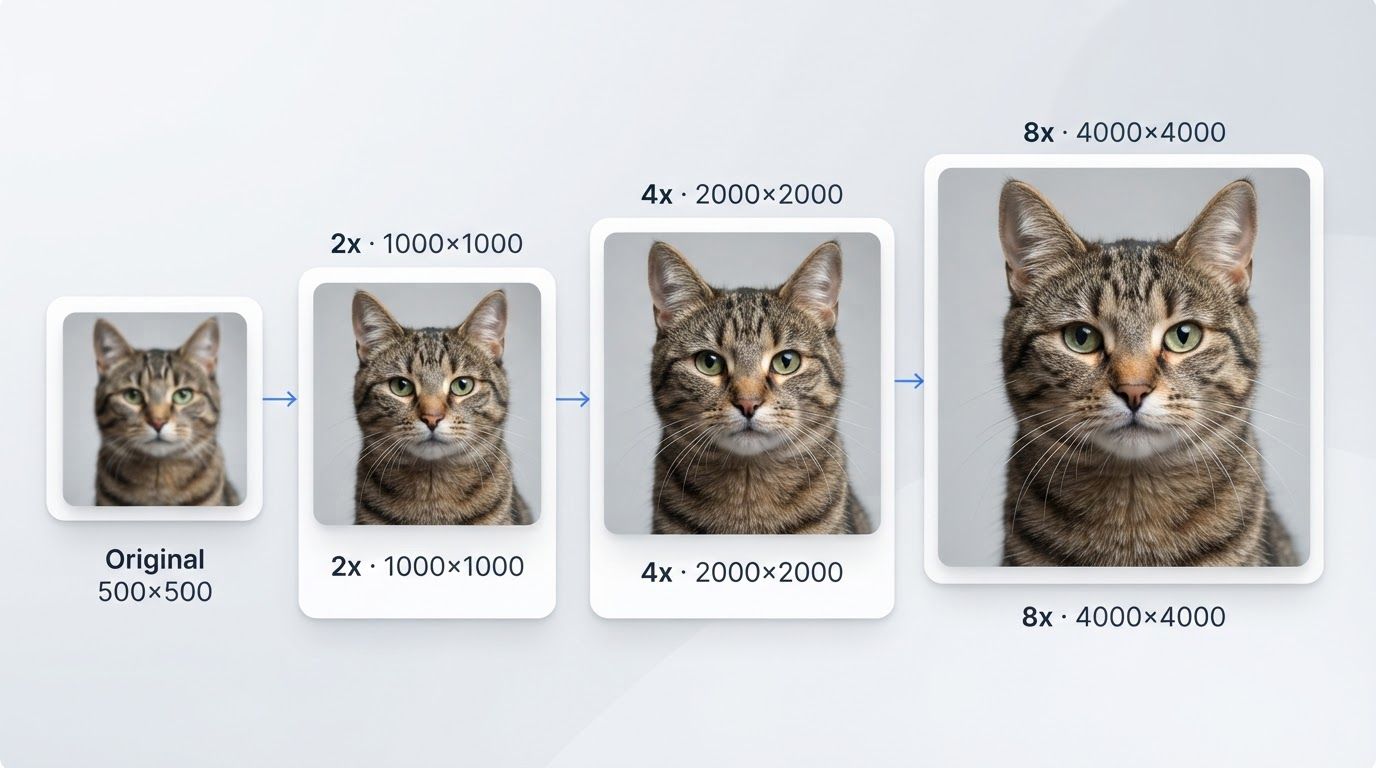
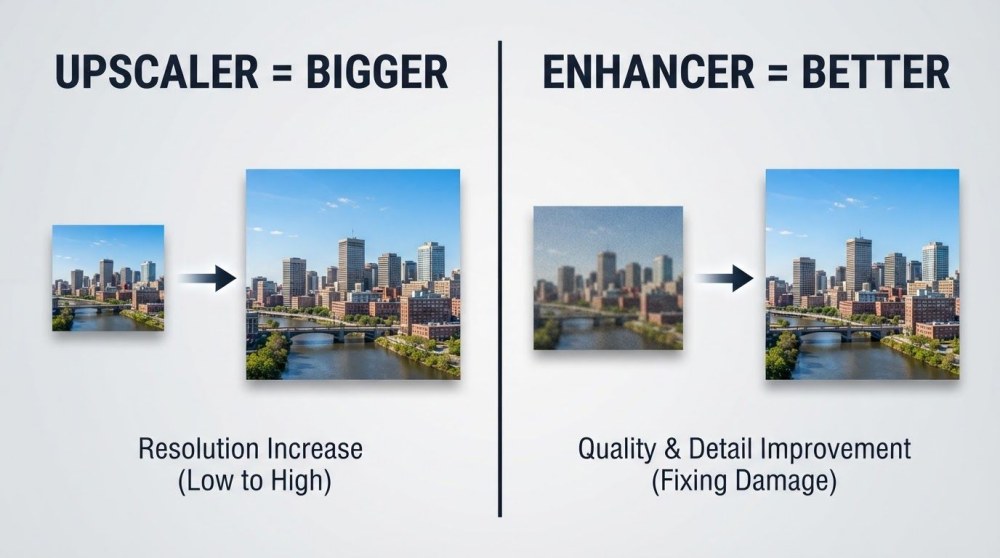
An image upscaler keeps your picture exactly as it is and simply increases its resolution. Through super-resolution, it multiplies the pixel count—2x, 4x, or 8x—and reconstructs fine detail so the enlarged image stays sharp instead of turning blurry or blocky.
Nothing new is invented. The framing, subject, and background are identical; there are just more pixels, so the image can be printed larger or shown on a high-resolution display.
Use an upscaler when you need to:
- Print a photo larger without it going soft
- Meet a minimum resolution requirement for a marketplace or platform
- Enlarge a small or old image for a 4K screen
- Scale up AI-generated art to a usable size
Key idea: same picture, more pixels.
Try it: PixExtender Image Upscaler.
The Core Difference at a Glance
| Image Extender | Image Upscaler | |
|---|---|---|
| What it adds | New content (scene) | New pixels (resolution) |
| Technology | Outpainting (generative AI) | Super-resolution |
| Changes composition? | Yes—adds to the edges | No—identical framing |
| Changes aspect ratio? | Yes, that's the point | No |
| Best for | Reshaping, banners, backgrounds | Printing, 4K, low-res rescue |
| One-line memory | More scene | More pixels |
The easiest test: ask whether you want more of the picture or more detail in the same picture. More picture → extend. More detail → upscale.
When to Use Which: Real Scenarios
- "My product photo needs a wider background for a website banner." → Extend. You need new scene on the sides.
- "My product photo is sharp but too small to print on a poster." → Upscale. You need resolution, not new content.
- "My portrait needs to become a 16:9 thumbnail without cropping the person." → Extend.
- "My scanned photo looks great but pixelates when enlarged." → Upscale.
- "My image is small and the wrong shape." → Both—upscale for size, extend to reshape.
Clearing Up the "Enlarger" Confusion
Here's the naming trap. The word "enlarger" is used loosely across the industry: some tools use it to mean upscaling (more resolution), others use it to mean extending (a bigger canvas). No wonder people mix them up.
On PixExtender, the Image Enlarger is an extender—it expands your canvas and adds new content to change the shape of your image. If what you actually want is to keep the same picture and just raise its resolution, that's the Image Upscaler instead.
Quick rule of thumb:
- Want a different shape / more background? → Image Enlarger (extend)
- Want the same image at higher resolution? → Image Upscaler
You Can Use Both Together
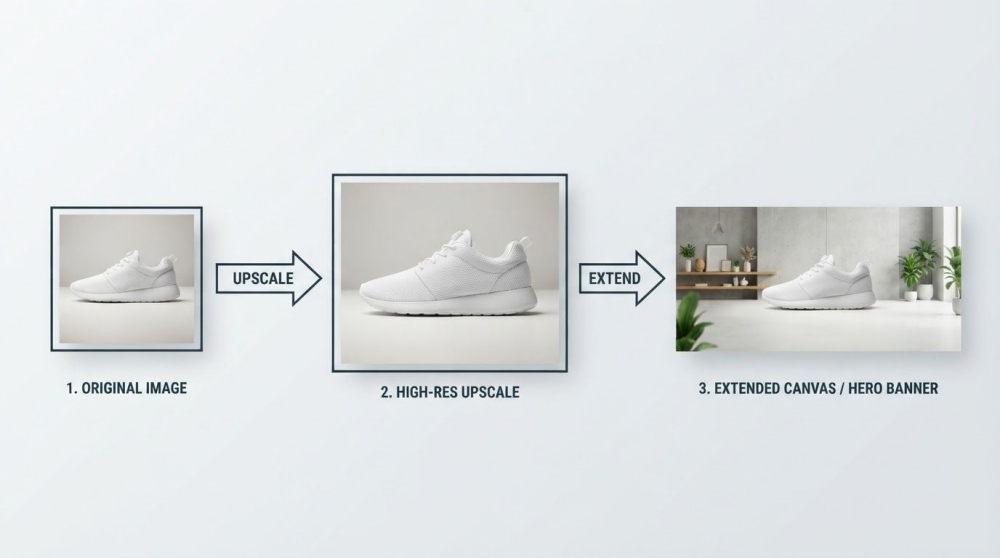
Extending and upscaling aren't either/or—they combine well. A typical order:
- Upscale first if your source is low resolution, so you're working with enough detail.
- Extend second to reshape the now-high-resolution image for its destination.
For example: take a small square product photo, upscale it to a crisp high resolution, then extend it into a wide website hero banner. Because PixExtender offers both tools in one place, you can run this without exporting and re-uploading between different apps.
Frequently Asked Questions
What's the real difference between extending and upscaling an image?
Extending adds new content beyond the original edges (changing the composition and aspect ratio) using outpainting. Upscaling keeps the same picture and only increases its resolution using super-resolution. Extenders reshape; upscalers resize.
If I want to make an image bigger without losing quality, which do I use?
If "bigger" means higher resolution / larger print of the same picture, use an upscaler. If "bigger" means a wider or taller canvas with more background, use an extender. They solve different kinds of "bigger."
Does an image extender reduce quality like stretching does?
No. Stretching duplicates existing pixels and creates distortion. An AI extender generates new pixels that match your photo's style and lighting, so the added areas look natural rather than smeared. It's the opposite of a crude stretch.
Is the PixExtender Image Enlarger an upscaler?
No—it's an extender. It expands your canvas and adds new content to change the image's shape. For pure resolution increase on the same picture, use the Image Upscaler.
Can I change the aspect ratio with an upscaler?
No. An upscaler preserves your image's exact framing and proportions; it only adds pixels. To change the aspect ratio—say, square to 16:9—you need an image extender.
Choose With Confidence
Remember the split: extend for more scene, upscale for more pixels. When you need a different shape or more background, extend. When you need the same picture at a higher resolution, upscale. When you need both, upscale first and extend second.
Try whichever you need, free, on PixExtender:
- Image Enlarger — expand the canvas and reshape
- Image Upscaler — raise resolution up to 4K
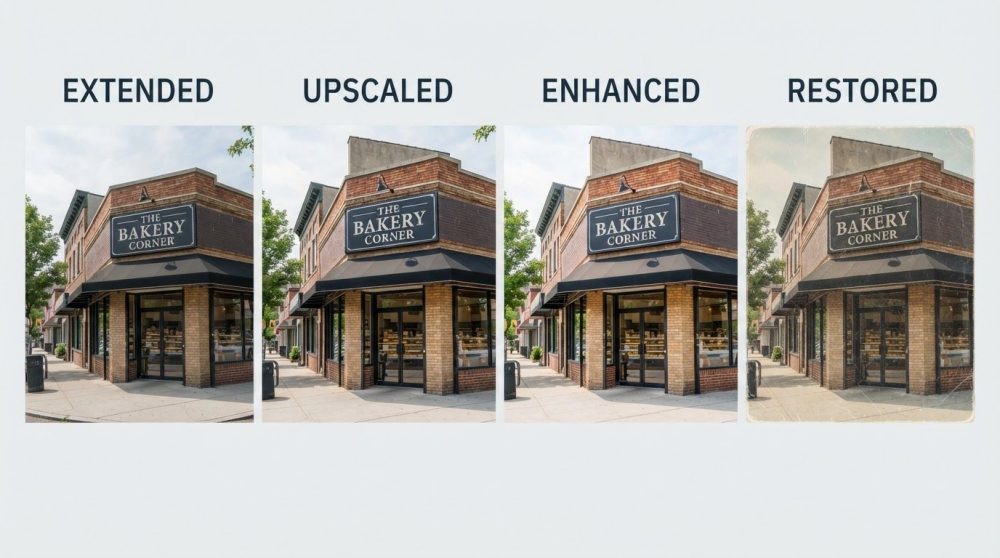
Want the full picture across every tool? Read Upscale vs Enhance vs Extend vs Restore, or compare the two clarity tools in Image Upscaler vs Photo Enhancer.
Start free with PixExtender → PixExtender.com