Why You Need to Extend Your Images
Have you ever captured the perfect photo, only to realize it doesn't fit the platform you want to post it on? Maybe your product photo gets cropped on Instagram, your banner loses important details on Facebook, or your landscape shot needs more breathing room for a professional presentation.
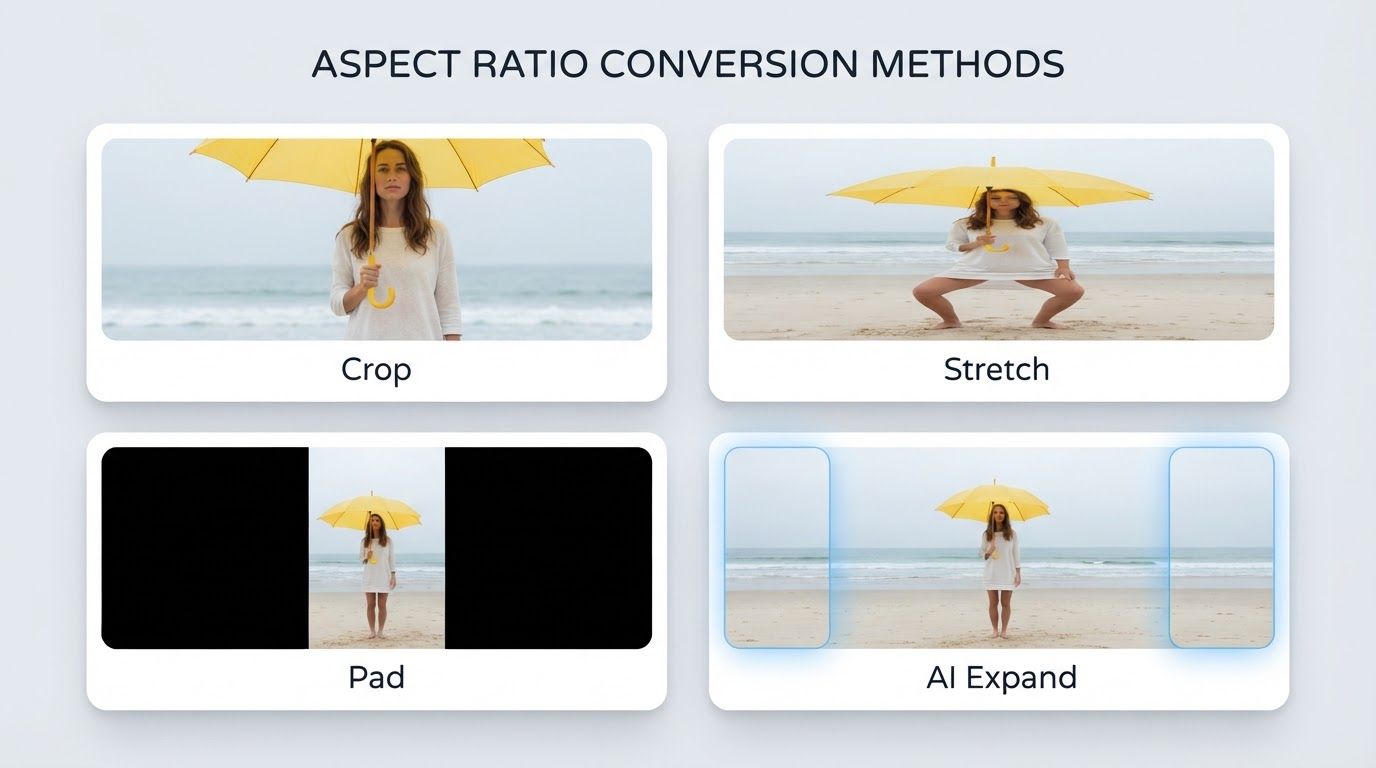
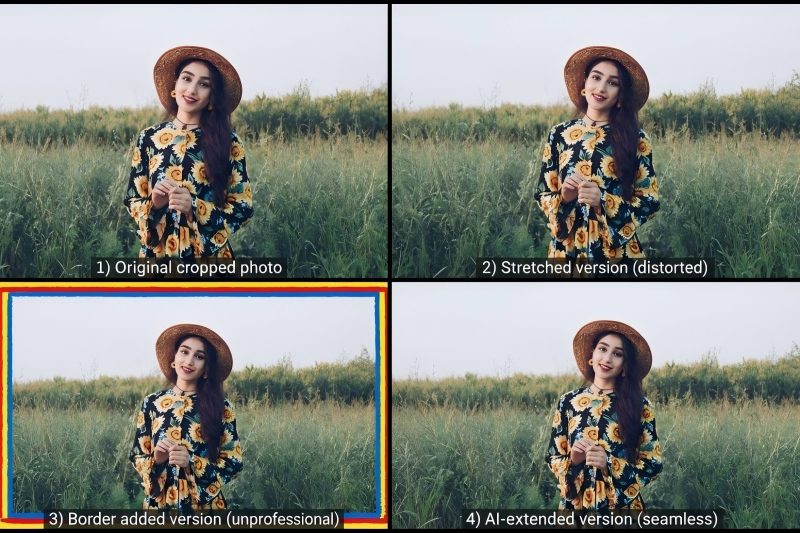
Traditional solutions like cropping, stretching, or adding generic borders often make things worse. Cropping cuts off important content, stretching creates distortion, and plain colored borders look unprofessional. That's where AI-powered image extension comes in.
Image extension, also known as outpainting, uses artificial intelligence to intelligently expand your photos beyond their original borders. Instead of just stretching pixels or filling space with solid colors, AI analyzes your image's content, context, and style to generate new pixels that blend seamlessly with the original.
This technology is a game-changer for:
- Social media managers who need to adapt content for different platform requirements
- E-commerce sellers who want to add safe zones around product images
- Photographers looking to expand compositions without losing quality
- Content creators who need to repurpose existing visuals for new formats
- Marketers creating ad creatives and promotional banners
PixExtender brings professional AI image extension to everyone—no complex software, no design skills required. In this guide, you'll learn exactly how to extend any image to fit your needs, whether you're adapting for Instagram posts, Facebook cover photos, or custom dimensions.
What is Image Extension and Outpainting
Image extension, also called outpainting, expands an image beyond its original boundaries by generating new content that matches the existing visual style. Unlike traditional methods like cropping (loses content), stretching (creates distortion), or adding borders (looks unprofessional), AI-powered outpainting creates contextually appropriate pixels that blend seamlessly.
How AI Image Extension Works
AI image extenders like PixExtender use machine learning models trained on millions of images. The process involves:
- Content Analysis: The AI examines your image's subject, background, patterns, lighting, and style
- Context Understanding: It identifies what should logically continue beyond the frame (sky, walls, textures)
- Smart Generation: Creates new pixels matching the color palette, lighting, perspective, and style
- Seamless Blending: Generated content blends naturally with the original image
Key Benefits
⚡ Speed: What takes 30-60 minutes in Photoshop happens in seconds
🎯 Quality: Realistic extensions that understand depth, perspective, and context
🔄 Consistency: Perfect for batch operations like e-commerce catalogs
✅ No Skills Needed: If you can upload an image, you can extend it
Why Choose PixExtender for Image Extension
PixExtender delivers professional AI-powered image extension with features designed for seamless outpainting. Here's what makes it stand out:
🎯 Context-Aware AI Technology
PixExtender uses advanced AI that understands your image's content, composition, and style. The technology recognizes architectural lines, natural patterns, lighting conditions, and color palettes to generate extensions that blend seamlessly—not computer-generated looks.
📐 Flexible Aspect Ratios
Choose from popular presets or enter custom dimensions:
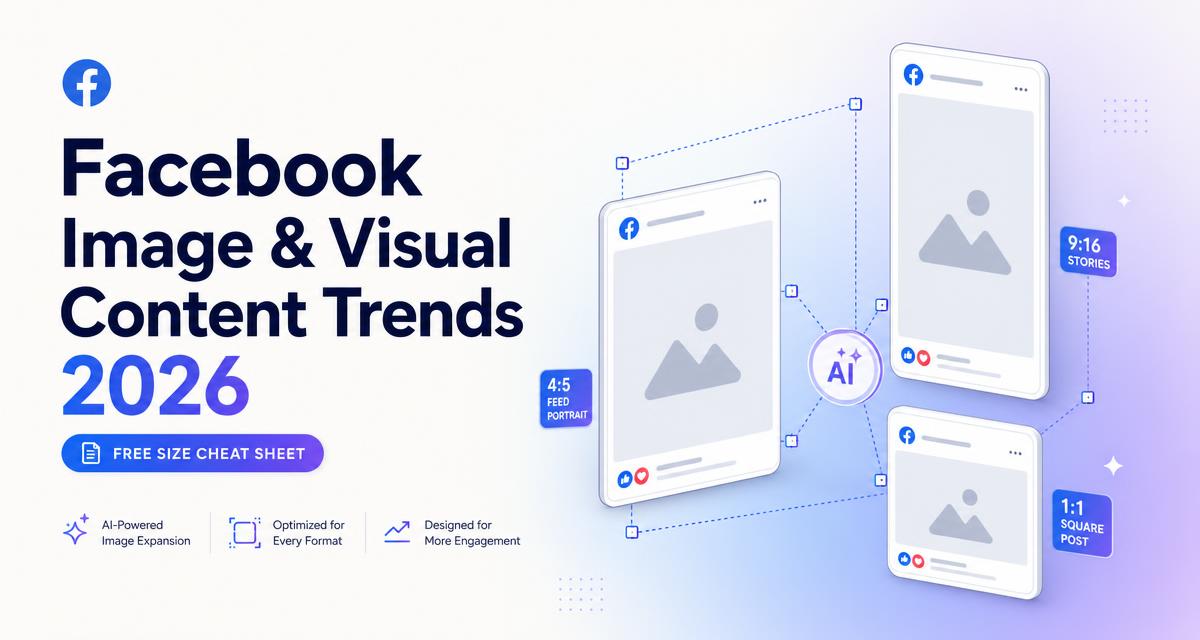
- 1:1 (Square), 4:5 (Portrait), 9:16 (Stories/Reels)
- 16:9 (YouTube), 2:1 (Wide Banner)
- Custom dimensions for any platform
Perfect for Instagram, Facebook, Pinterest, YouTube, and more.
⚡ Key Features
Batch Processing: Extend multiple images simultaneously with consistent quality—ideal for e-commerce catalogs and social media workflows.
Online Tool: No software installation required. Works directly in your browser on any device (Windows, Mac, Linux, tablets).
Multi-Format Export: Download as JPG, PNG, or WEBP to match your needs.
Free Trial: Test the service with trial credits—no credit card required.
How to Extend an Image Using PixExtender: Step-by-Step Guide
Extending an image with PixExtender takes less than a minute. Follow these five simple steps:
Step 1: Upload Your Image
Visit PixExtender and upload your image by clicking "Upload" or dragging the file onto the page.
- Supported formats: JPG, PNG, WEBP
- Max file size: 10MB
- Recommended resolution: 512px minimum on shortest side
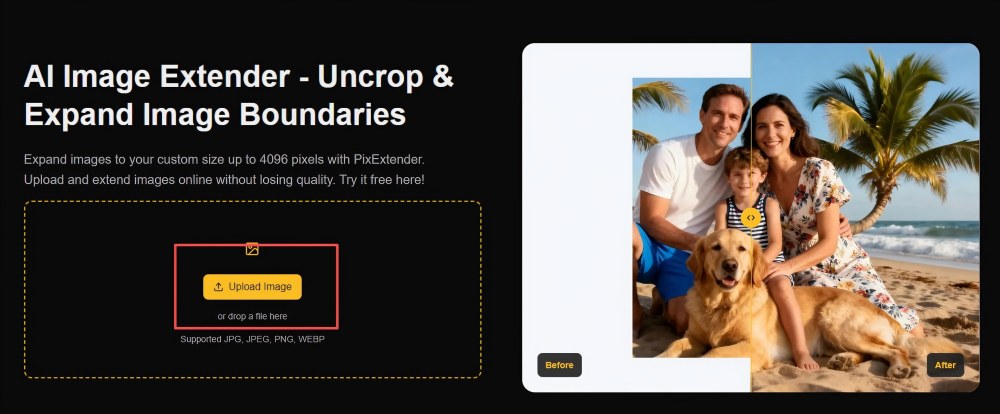
Pro tip: Images with clear, simple edges extend best.
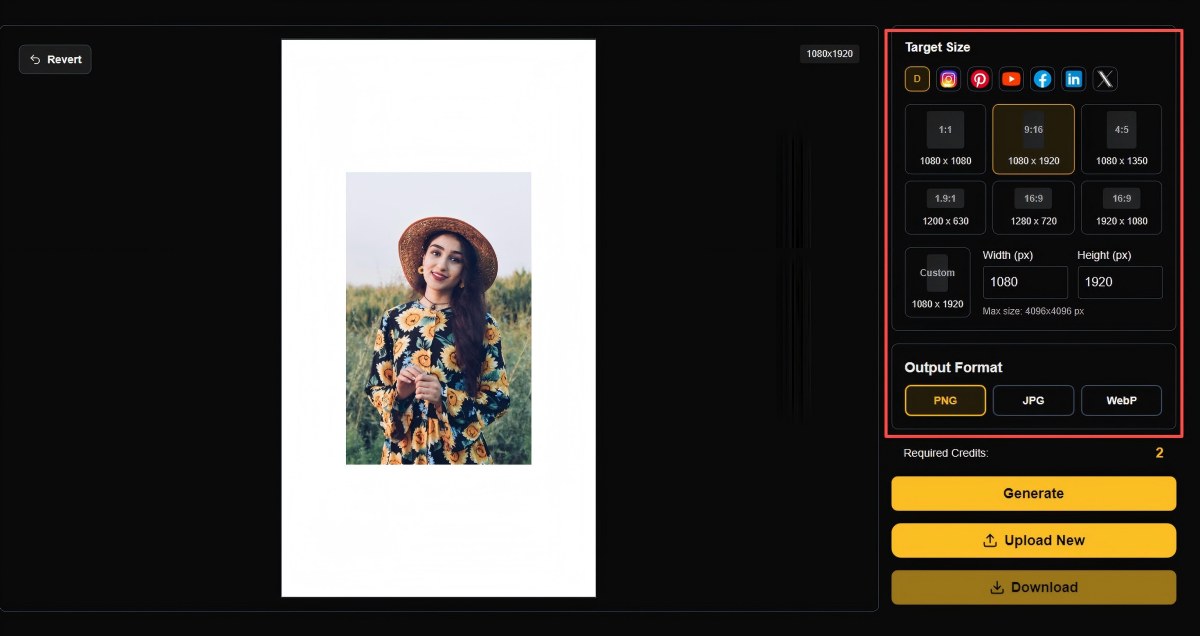
Step 2: Set Your Target Dimensions
Choose your desired output size:
Preset Ratios: 1:1 (Square), 4:5 (Portrait), 9:16 (Stories), 16:9 (YouTube), 2:1 (Banner)
Custom Dimensions: Enter exact width and height in pixels for specific requirements.
Step 3: Position Your Image on Canvas
Click and drag your original image to choose where AI extends:
- Position left → extends right
- Position right → extends left
- Position top → extends bottom
- Position bottom → extends top
- Position center → extends all sides
Empty space = areas AI will fill.
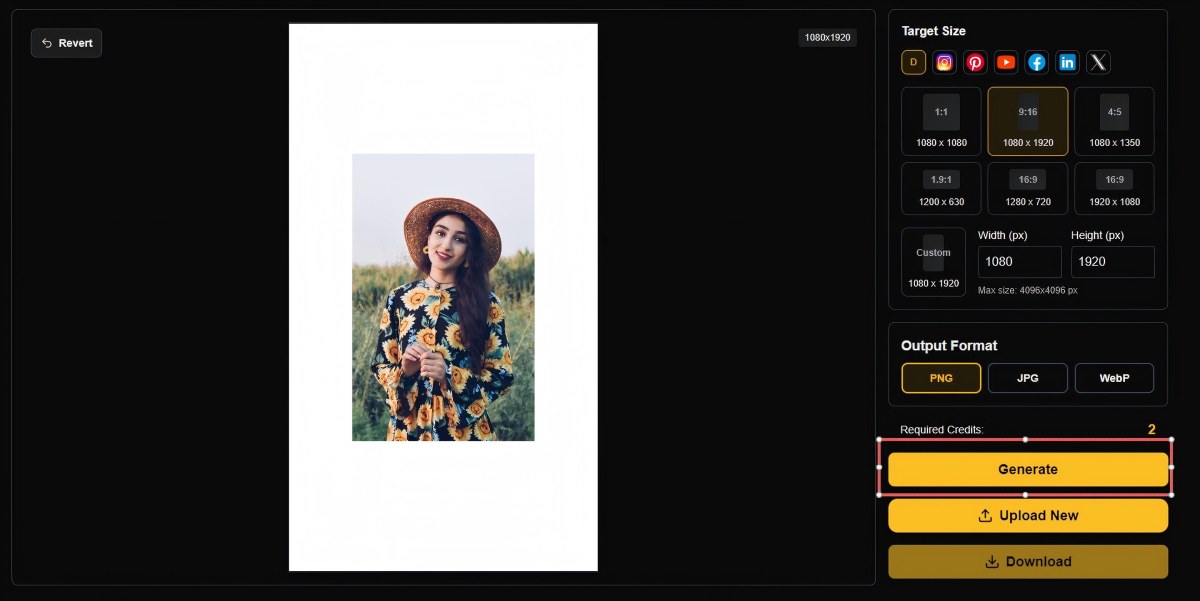
Step 4: Generate Extension
Click "Generate" or "Extend Image". Processing takes 5-15 seconds. If needed, adjust position and regenerate for different results.
Step 5: Download
Choose your format (JPG, PNG, or WEBP) and click "Download". Your extended image is ready to use.
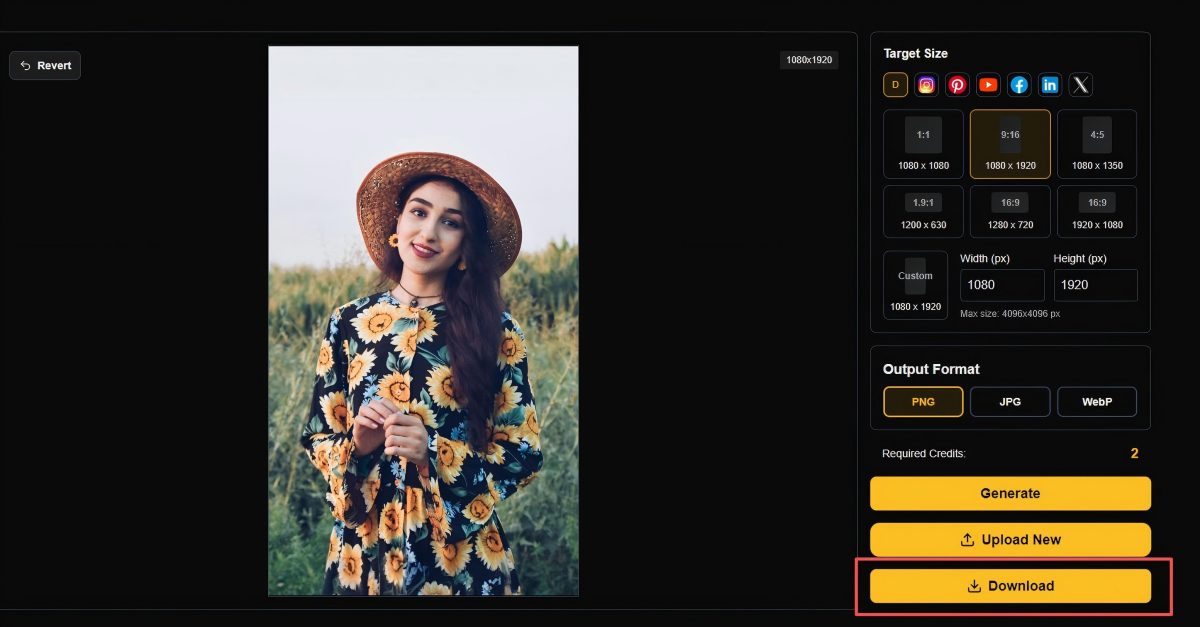
Total time: Under 1 minute per image
Professional Tips for Effective Image Extensions
Follow these best practices for exceptional results:
Choose the Right Images
Best for extension:
- Simple, uniform backgrounds (sky, walls, solid colors)
- Repeating patterns (brick, grass, water)
- Natural landscapes with clear horizons
- Architectural photos with clean lines
Challenging:
- Busy, cluttered backgrounds
- Complex edges with multiple objects
- Important subjects cut off at frame edges
Tip: Extend toward simpler backgrounds. For example, extend upward for more sky rather than sideways through busy details.
Extension Direction Strategy
- Upward: Add sky/ceiling, create space for top text overlays
- Downward: Add ground/floor, create space for bottom captions
- Horizontal: Create wider banners, add breathing room beside subjects
- Center (all directions): Uniform expansion, adding safe zones
Common Mistakes to Avoid
❌ Don't:
- Extend tiny images to poster sizes (reduces quality)
- Ignore composition—use rule of thirds
- Extend through people's faces or product details
- Forget platform safe zones
✅ Do:
- Start with high-resolution source images (1080px+ recommended)
- Keep subjects centered with adequate padding
- Preview on both desktop and mobile before publishing
- Use consistent dimensions for batch processing
Batch Processing & Refinement
For multiple images: Standardize dimensions, group similar backgrounds, review samples before full batch processing.
Post-processing: Add text overlays, adjust brightness/contrast, compress with tools like TinyPNG. Avoid over-editing extended areas.
Frequently Asked Questions
What file formats does PixExtender support for image extension?
PixExtender supports the most common image formats: JPG, PNG, and WEBP for upload. You can also download your extended images in any of these formats. Use JPG for photographs (smaller file size), PNG for graphics requiring transparency or maximum quality, and WEBP for modern web optimization.
Can I extend an image in multiple directions at once?
Yes. By positioning your original image in the center of the canvas, you create empty space on all sides that the AI will fill simultaneously. This is ideal when you need uniform expansion around your subject or when converting from one aspect ratio to a much different one (e.g., square to landscape banner).
How long does it take to extend an image with AI?
Generation typically takes 5-15 seconds depending on image size, complexity, and server load. Batch processing multiple images happens in parallel, so extending 10 images doesn't take 10 times longer than extending one.
Will AI extension work on any type of image?
AI extension works best on images with clear backgrounds and defined edges. Photos with simple backgrounds (sky, walls, solid colors), natural landscapes, or repeating patterns produce the most seamless results. Images with very busy, complex edges or important subjects cut off at the frame may require more careful positioning.
What's the maximum size I can extend an image to?
PixExtender supports extending images up to 4096px on the longest side. For best results, start with high-resolution source images (at least 1080px on the shortest side). This gives you flexibility to extend to most platform requirements (Instagram, Facebook, YouTube, etc.) while maintaining excellent quality. Avoid extending very small images to maximum size, as this may reduce quality.
Do I need design skills or Photoshop experience?
Not at all. PixExtender is designed for anyone to use, regardless of technical skill. If you can upload an image and drag it to position, you can extend images professionally. No knowledge of layers, masking, or editing tools required.
Can I use extended images for commercial purposes?
Yes. Images you extend with PixExtender are yours to use commercially—for social media, e-commerce, advertising, client work, and more. Check PixExtender's specific terms of service for details on usage rights.
What if I don't like the extension result?
Most AI image extenders, including PixExtender, allow you to regenerate with slightly different AI outputs. You can also adjust your image position and try extending in a different direction. The AI is highly consistent, but minor variations can occur between generations.
How does AI image extension compare to hiring a designer?
AI extension handles specific tasks—expanding backgrounds and fitting aspect ratios—instantly and at a fraction of the cost. For these specific needs, it's faster and more affordable than hiring a designer. However, for complex creative work, custom compositions, or brand design, working with a professional designer is still valuable. Use AI for repetitive tasks and bulk processing; use designers for creative strategy and custom work.
Can I extend images that have people or faces in them?
Yes, but position your original image so that people and faces remain completely within the original frame—not at the edges being extended. AI excels at extending backgrounds around subjects, but shouldn't be asked to generate new body parts or facial features. Keep your subjects intact and extend the environment around them.
Is there a limit to how many images I can extend?
This depends on your PixExtender plan. The free trial includes credits for testing the service. Paid plans offer various limits based on usage needs. Batch processing makes it easy to extend hundreds of images when needed.
Ready to Extend Your Images?
AI-powered image extension transforms how you adapt visual content for multiple platforms and purposes. Instead of cropping, stretching, or starting from scratch, you can now extend any image seamlessly to fit Instagram, Facebook, YouTube, LinkedIn, Pinterest, or any custom dimension you need.
With PixExtender, you get:
- ✅ Professional AI outpainting in seconds
- ✅ Flexible aspect ratios for any platform
- ✅ Batch processing for multiple images
- ✅ No software installation required
- ✅ Free trial credits to test the service
Whether you're a social media manager adapting content, an e-commerce seller standardizing product photos, a content creator optimizing for multiple platforms, or a marketer building ad campaigns—image extension saves time while maintaining quality.
Start extending your images now → PixExtender.com
Try it free and see how AI-powered outpainting transforms your image workflow.