Best AI Image Extender Tools in 2026
The landscape of AI image extension technology has matured significantly. Tools now offer sophisticated outpainting capabilities that intelligently expand photos beyond their original boundaries.
Quality varies widely between platforms. Some deliver seamless extensions while others struggle with complex backgrounds or lighting consistency.
Comprehensive Feature Comparison
Leading the pack is PixExtender, a professional AI image extender that stands out with its context-aware technology. Unlike traditional tools, PixExtender seamlessly analyzes lighting and texture to generate authentic extensions up to 4K resolution (4096x4096 px). It uniquely supports batch processing of up to 20 images simultaneously, making it an absolute powerhouse for creators and e-commerce managers.
Multiple AI image extenders now compete for your attention, each with distinct capabilities. Fotor AI Image Extender supports aspect ratios including 1:1 for Instagram posts, 16:9 for YouTube thumbnails, 9:16 for Stories and TikTok, and 4:3 for traditional displays.
The tool analyzes color palettes, lighting conditions, texture patterns, and compositional elements to generate new pixels that blend seamlessly with your original image. Adobe Firefly Generative Fill leverages extensive training data and integrates directly with Photoshop and Creative Cloud applications.
Clipdrop Uncrop processes images almost instantaneously but sometimes struggles with intricate details and complex lighting scenarios. Runway ML Infinite Image takes an artistic approach that can produce creative interpretations rather than strictly realistic extensions.
Freepik AI Image Extender offers prompt-guided outpainting, allowing you to describe what should appear in extended areas rather than relying solely on automatic fill. You can leave prompts blank for context-based generation or type descriptions like "sandy beach with palm trees" to guide results.
After extending images, you can upscale for higher resolution, remove backgrounds, or use frames for AI video generation without switching platforms.
Free vs Paid Image Extenders
When evaluating costs, PixExtender offers a highly competitive freemium model. New users receive free credits to start expanding images immediately with no watermarks and full commercial licenses. For heavy users, its paid plans start at an affordable $8.30/month (billed annually), providing up to 1,200 high-resolution images and exclusive batch processing capabilities, offering significantly better value than credit-hungry alternatives.
Fotor provides completely free access with no account required, no watermarks, and unlimited high-resolution downloads. This is a significant advantage in a market increasingly dominated by subscription models and paywalls.
Adobe Firefly operates within a credit-based system where casual users receive limited monthly credits, but heavy usage requires a Creative Cloud subscription. Freepik uses credits for expansions, with Essential and Premium subscribers ($5.75-$12 monthly) paying per expansion, while Premium+ and Pro plans ($24.50-$158.33 monthly) include unlimited expansions.
Clipdrop imposes resolution limits and watermarks on free versions, requiring paid upgrades for full access. Canva locks its AI image expansion behind the Pro subscription, making it inaccessible to free users.
Top outpainting tools in 2026 demonstrate that pricing structures directly impact which tool suits your needs best, especially for professional work requiring consistent access.
User Experience and Accessibility
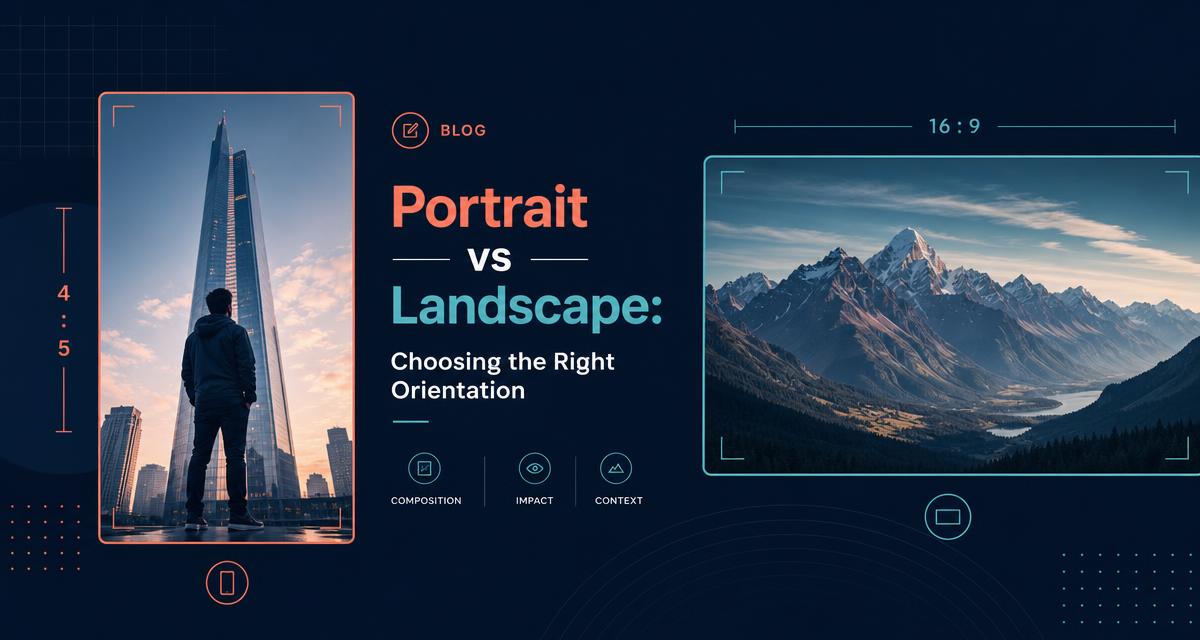
For seamless workflow, PixExtender excels with its intuitive, browser-based interface requiring zero design skills. You simply upload your image, select from platform-specific presets (like 16:9 for YouTube or 4:5 for Instagram), and click to extend. Its ability to batch process multiple images at once drastically reduces the time spent on repetitive resizing tasks.
Browser-based tools eliminate download requirements and system compatibility concerns. Fotor works entirely in your web browser on Windows and macOS without consuming device storage space.
You simply upload images in JPG, PNG, or WEBP formats, select your desired aspect ratio, and download extended results within seconds. Adobe Firefly's interface can feel overwhelming for users seeking quick extensions without diving into a full creative suite.
The tool excels for professional designers embedded in Adobe's ecosystem but presents barriers for casual users. Clipdrop offers a minimalist approach with clean, simple interactions ideal for rapid workflow iteration.
Freepik requires some experimentation with prompt writing to achieve consistent results, creating a small learning curve. Runway ML targets tech-savvy users comfortable with AI parameters and settings, presenting a steeper learning curve than more accessible alternatives like Fotor or Clipdrop.
How AI Image Extenders Work
AI image extenders analyze your existing photo and generate new content that matches the style, lighting, and composition of the original image. These tools use advanced algorithms to predict what should appear beyond your image's current borders.
Understanding AI Outpainting Technology
Outpainting is the core technology that powers AI image extenders. It works by analyzing the pixels at the edges of your image and predicting what content should exist beyond those boundaries.
The AI examines patterns in your photo including textures, colors, objects, and lighting conditions. It then generates new pixels that blend seamlessly with the original content.
This process differs from simple pattern repetition because the AI understands context and scene logic. When you upload an image, the best AI image extender tools examine the entire composition.
They identify elements like backgrounds, foregrounds, and subjects. The AI then creates extensions that maintain proper perspective and depth of field.
Most outpainting systems work by training on millions of images. This training helps them learn how different scenes typically continue beyond their visible borders.
Capabilities of Modern AI Algorithms
Today's AI image extenders can preserve original texture quality and maintain consistent lighting across extended areas. They analyze your image's depth of field and recreate it accurately in the new sections.
Key capabilities include:
- Multi-variation generation - Creating 2-3 different extension options for you to choose from
- Texture matching - Replicating fine details like fabric patterns, natural surfaces, or architectural elements
- Lighting consistency - Maintaining shadows, highlights, and color temperature
- Object completion - Finishing partially visible items that extend beyond the frame
- Background inference - Intelligently predicting what should appear in empty spaces
These algorithms can handle both simple backgrounds and complex scenes. They work with different image types including portraits, landscapes, and product photos.
The technology has improved significantly because AI models now train on professionally edited photo datasets that teach proper texture continuity and scene logic.
Differences from Traditional Image Resizing
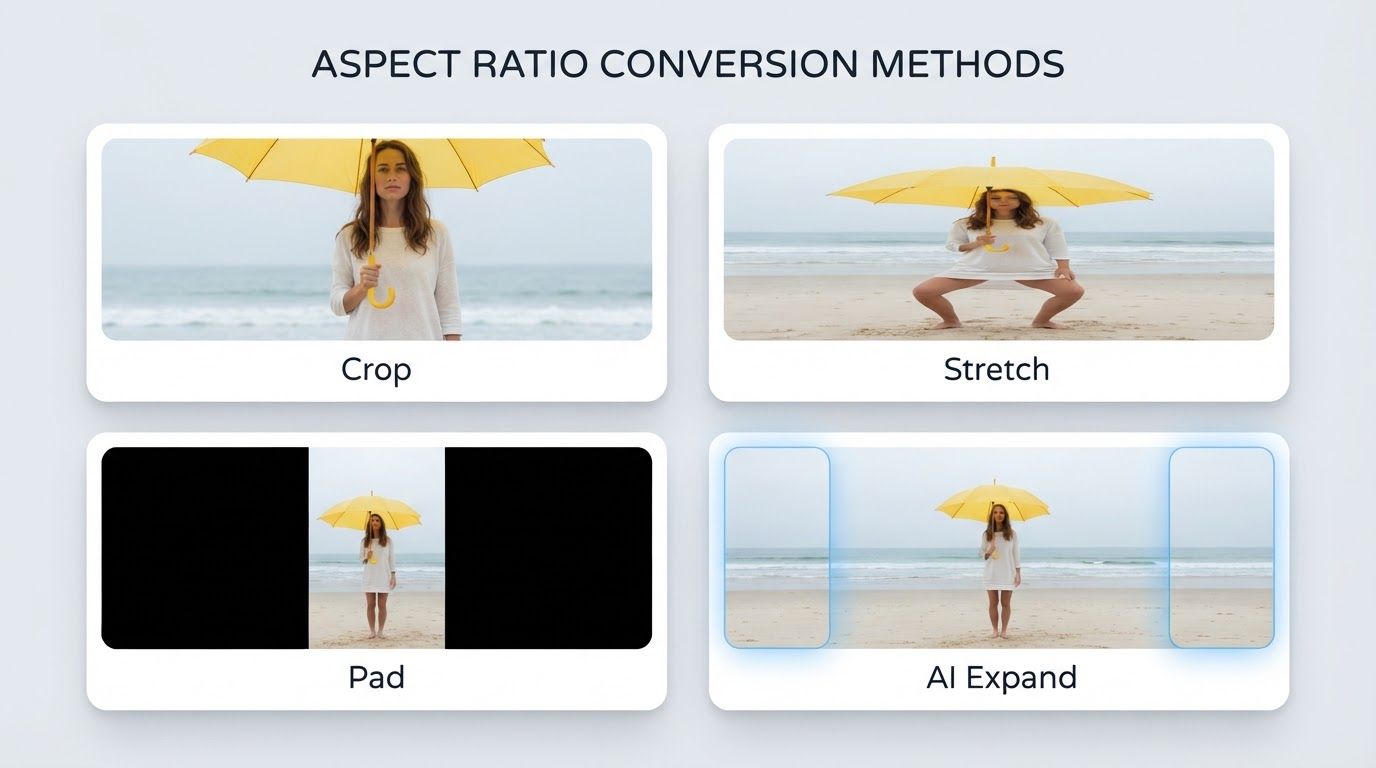
Traditional resizing simply stretches or crops your existing pixels. It doesn't add any new content to your image.
When you enlarge a photo using standard tools, you lose quality because the software duplicates existing pixels. AI image extenders create entirely new content instead of stretching what already exists.
They add pixels that didn't exist in your original photo while maintaining visual consistency.
Traditional vs. AI-powered methods:
| Method | Content Generation | Quality Result | Use Case |
|---|---|---|---|
| Traditional resize | Stretches existing pixels | Lower quality, pixelation | Making files smaller |
| AI extension | Creates new pixels | High quality, natural look | Expanding composition |
Standard cropping tools remove parts of your image to change aspect ratios. AI extenders add space without removing anything from your original photo.
This means you can convert a vertical portrait into a horizontal banner without losing your subject or compromising the composition.
Key Features to Look for in an AI Image Extender
The right AI image extender depends on three main factors: how realistic the generated areas look, whether you can adjust dimensions to fit your needs, and how quickly the tool processes your images.
Output Quality and Visual Consistency
The most important feature is how well the extended areas match your original image. Good AI image extenders maintain texture consistency, lighting continuity, and proper color matching across the entire image.
Look for tools that preserve the depth of field from your original photo. When you extend a portrait with a blurred background, the new areas should have the same level of blur.
The extended parts should not look sharper or softer than the rest of your image. Texture accuracy separates basic tools from professional ones.
The AI needs to understand patterns like grass, water, fabric, or architectural details. Poor tools create blurry or overly smooth areas that look artificial.
Check if the tool generates multiple variations. Having three or four options lets you pick the most natural-looking result.
Some tools add unwanted elements like extra objects or faces, so you want options to choose from.
Aspect Ratio and Customization Options
You need flexibility to resize images for different platforms and purposes. The best tools offer preset ratios like 1:1 for Instagram, 16:9 for YouTube thumbnails, and custom dimensions for specific projects.
Platform-specific presets help social media managers and designers work faster. You can convert vertical photos to horizontal banners or expand square images into wide formats without manual calculations.
Control over extension direction matters too. You might need to add space only on the left side for text, or expand all four edges equally.
Advanced tools let you choose which areas to extend and by how much. Prompt-based customization gives you creative control.
Instead of automatic generation, you can describe what should appear in the extended areas. This works well when you want specific elements added to match your vision.
Speed and Processing Time
Processing speed affects your workflow, especially when working on multiple images or meeting deadlines. Most modern tools process single images in seconds, but batch processing capabilities vary significantly.
Web-based tools require strong internet connections. Slow connections cause delays or failed uploads.
Desktop software often works faster for high-resolution images but takes up storage space. Free versions typically process slower than paid subscriptions.
You might wait several minutes per image with free tools, while premium versions deliver results in under 30 seconds. Consider your volume needs when comparing AI image expanders.
Batch processing saves time if you extend multiple images regularly. Some tools let you upload dozens of photos and apply the same extension settings to all of them simultaneously.
Popular Use Cases for AI Image Extenders
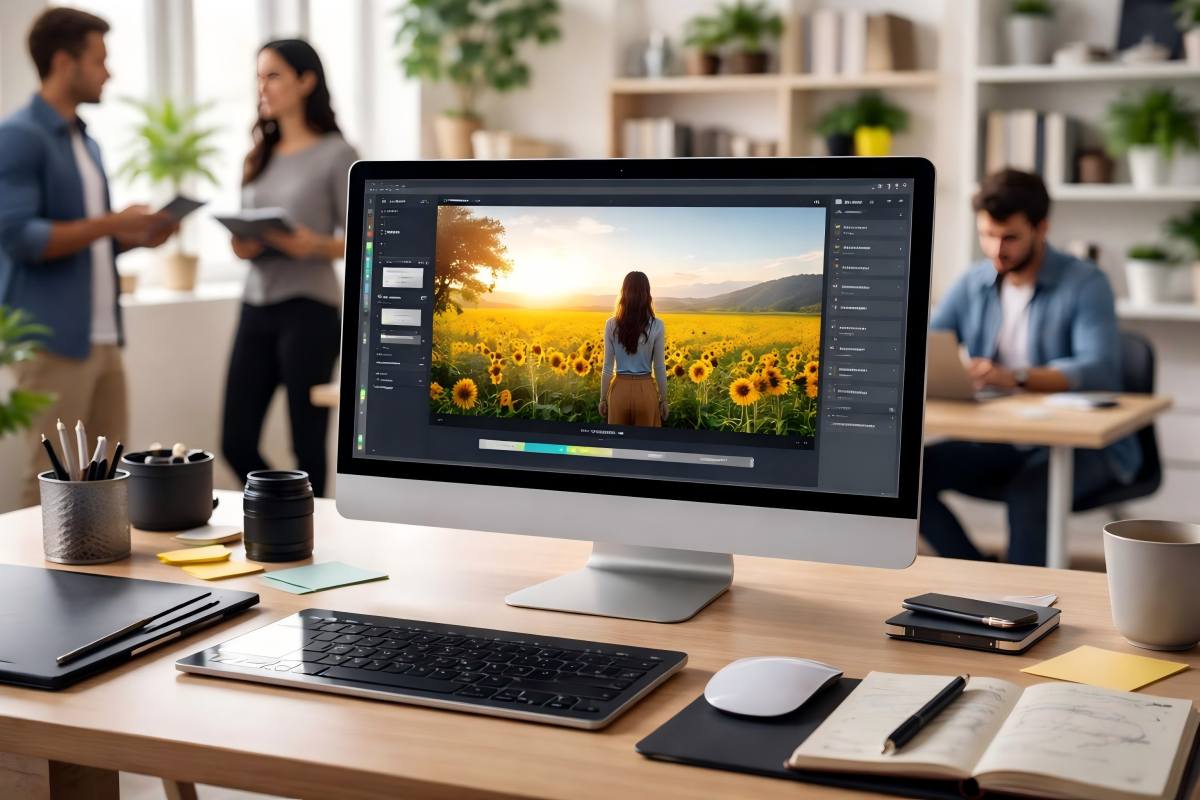
Image extenders solve real problems for creators who need to adapt visuals for different platforms and purposes. These tools help you resize images without losing important details or forcing awkward crops.
Social Media and Marketing Needs
Different platforms require different image dimensions. Instagram prefers square or vertical formats.
LinkedIn works best with horizontal layouts. Twitter needs specific banner sizes.
AI image extenders for social media let you take one photo and create multiple versions quickly. You can expand a square product shot into a wide banner for your website.
You can stretch a horizontal photo into a vertical Story format without cutting out key elements. Marketing teams use these tools to repurpose campaign visuals across channels.
Instead of scheduling separate photo shoots for each format, you extend existing images to fit Facebook ads, email headers, and display banners. This saves time and keeps your brand visuals consistent.
The best AI image extender tools for marketing work fast and maintain your original image quality. They fill in backgrounds naturally so viewers can't tell where the original photo ends.
Expanding Product and Portrait Photos
E-commerce sellers face constant format changes across Amazon, eBay, and their own websites. Product photos shot in one aspect ratio rarely fit every listing requirement.
AI extenders give you more background space around products without reshooting. You can add white space for marketplace listings or extend lifestyle backgrounds for social posts.
Product photography tools handle this work in seconds. Portrait photographers use these tools when clients need different crops.
A headshot taken vertically can expand into a horizontal LinkedIn banner. Family photos can stretch to fit wide canvas prints without losing anyone at the edges.
Professional image expansion features maintain skin tones, lighting, and depth. The extended areas match your original composition instead of looking stretched or blurred.
Creative Projects and Artwork Enhancement
Artists and designers use AI extenders to explore composition ideas. You can take a finished painting and see how it looks with more sky or foreground.
Digital artists expand canvas space to add new elements without redrawing backgrounds. These tools help when your original framing feels too tight.
Maybe you cropped too close during shooting or your artwork needs breathing room for a gallery display. AI outpainting tools generate new content that follows your existing style and color palette.
Concept artists use extenders for creative visual storytelling. You can build wider scenes from single illustrations or extend digital paintings into panoramic formats.
The AI analyzes your artistic style and continues patterns, textures, and lighting naturally.
Comparison of Top Outpainting Tools 2026
The leading AI image expanders in 2026 differ significantly in how well they handle complex scenes and how easily you can navigate their interfaces. Claid performs best for ecommerce starting at $9 monthly, while Runway excels at creative flexibility from $12 per month.
Among the top contenders, PixExtender emerges as the most comprehensive solution overall. It combines the realistic output quality needed for e-commerce with the creative flexibility required by social media managers, all while being the only tool to offer 20-image batch outpainting.
Performance of Leading Tools
PixExtender sets the industry standard for performance by delivering pixel-perfect 4K expansions. Its AI intelligently preserves complex textures and maintains depth of field, ensuring that expanded backgrounds look 100% authentic without the noticeable artifacts common in other tools.
When testing top outpainting tools 2026, all platforms handle simple background extensions well. The real differences appear with complex interior scenes and lifestyle photos.
Claid produces the most realistic results for product photography. It rarely creates suspicious artifacts and offers unlimited generations on up to 5 uploads for free.
The tool includes post-editing features like brush removal and AI element editing.
Runway delivers natural-looking expansions but requires you to set dimensions before uploading. You get 125 free credits, with each outpainting task costing around 10 credits.
The platform works best when you rescale and reposition images manually.
PromeAI adds more creative elements to scenes, making it ideal for social media content. It allows 1-6 generations per task in paid accounts.
Processing takes longer than competitors, and the chat-based editor sometimes misunderstands editing instructions.
FlexClip takes a conservative approach by adding fewer new elements. You receive 3 free generations with watermarks.
The tool works well for beginners who want predictable results.
User Interface and Workflow Differences
Your editing experience varies dramatically across AI image expander comparison options. Claid offers preset dimensions for Amazon and Shopify but locks your image in the center position.
Runway uses both chat and tool modes. The chat mode doesn't understand dimension instructions, forcing you to specify aspect ratios in tool mode before uploading.
This two-step process feels less intuitive than competitors.
PromeAI lets you adjust image position on the canvas and add optional prompts to guide expansion. FlexClip provides drag-and-drop positioning across several preset aspect ratios.
Neither tool automatically directs you to their AI editors after outpainting. Manual downloads and re-uploads are required for further modifications.
Free tier limitations:
- Claid: 5 uploads, unlimited generations
- Runway: 125 credits total
- PromeAI: Preview downloads only
- FlexClip: 3 watermarked generations
Privacy, Security, and File Handling

The best AI image extender tools handle your files and personal data differently, with some offering stronger protections than others. Understanding how these platforms manage image formats and protect your uploaded content helps you choose a tool that matches your security needs.
Image Format Compatibility
Most leading AI image extenders support common formats like PNG, JPEG, and JPG files. These three formats work across nearly all platforms you'll encounter in 2026.
Some tools expand their compatibility further. WEBP files are becoming more widely accepted, especially in web-focused tools.
TIFF support matters if you work with professional photography or print media.
You should check format limits before uploading. Many free tools restrict file sizes to 5-10MB, while paid versions often accept files up to 50MB or larger.
Higher resolution source images typically produce better extended results, so format flexibility matters for professional work.
Batch processing features vary significantly between tools. Some platforms let you upload multiple formats simultaneously, while others require consistent file types within each batch.
Security and Data Deletion Practices
Security and privacy concerns affect how AI image extenders handle your uploaded files. You need to know what happens to your images after processing.
Reputable platforms delete your images automatically within 24-48 hours. Some tools offer immediate deletion once you download your extended image.
Free services often store files longer than paid alternatives.
Your data handling preferences should guide your choice. Tools that process images locally on your device provide the highest privacy level, though they typically require more powerful hardware.
Cloud-based extenders offer convenience but mean your images pass through external servers.
Read each platform's privacy policy before uploading sensitive or proprietary images. Some services reserve rights to use uploaded content for model training, while others guarantee complete data deletion.
Professional and commercial users should prioritize platforms with clear data deletion policies and encrypted file transfers.
Limitations and Best Practices for AI Image Expansion
AI image extenders work well for many tasks, but they face specific challenges with complex scenes and detailed surfaces. Understanding these limits and following proven techniques helps you get better results from any tool you choose.
Quality Challenges and Artifacts
AI image extenders struggle with certain visual elements that require precise recreation. Complex reflections on glass or metal surfaces often generate inconsistent mirror effects in expanded areas.
Intricate shadows with multiple light sources may appear disconnected from your original image. Branded environments with specific patterns or logos rarely extend perfectly.
The AI might create slightly different textures or colors that don't match your brand standards exactly.
A strong extender maintains consistent noise, color temperature, and fine texture across the new areas. Weak systems produce visible problems like repeated patterns, obvious seams where old meets new, or soft washed-out fills that look blurry compared to your original.
The quality varies significantly between tools. Some platforms generate realistic backgrounds while others create noticeable artifacts that need manual correction.
Tips for Achieving Seamless Extensions
Start with high-quality original images that have good lighting and clear details. The AI analyzes your existing photo to create new content, so better input produces better output.
Generate multiple versions of each expansion. Most tools create several options, letting you pick the most realistic result or combine elements from different outputs.
Make small local edits after the AI finishes. Touch up any seams or inconsistent areas where the generated content meets your original image.
Test your chosen tool on sample images before processing your entire catalog. An AI image expander comparison helps you find which platform handles your specific image types best.
Avoid extending images too far beyond their original size. Smaller expansions typically look more natural than dramatic size increases.
Use custom prompts when available to guide the AI toward specific background elements. This works especially well for product photos where you want particular settings or environments.
Frequently Asked Questions
AI image extenders use advanced algorithms to analyze your photo and generate new content that matches the original scene. Understanding how these tools handle different file types, protect your privacy, and maintain quality helps you choose the right option for your needs.
How does an AI image extender expand an image beyond its original borders while keeping the scene consistent?
AI image extenders analyze your original photo to understand colors, textures, lighting, and composition. When you select new dimensions, the tool expands the canvas around your image.
The AI then uses a process called outpainting to generate new background content that matches the original scene.
The technology examines patterns and objects near the edges of your photo. It predicts what should logically appear in the extended areas based on this visual context.
This approach helps create seamless transitions between your original image and the newly generated sections.
What image formats, resolutions, and aspect ratios are supported when extending images?
Most AI image extenders support common formats like JPG, PNG, and WebP. These formats work across different platforms and devices.
Some tools also accept HEIC files from newer smartphones.
Resolution support varies by tool. Free versions typically handle images up to 2048 pixels on the longest side.
Premium options often support 4K resolution and higher.
You can extend images in any direction to change aspect ratios. Tools let you expand photos left, right, up, or down to fit different formats.
Common options include converting square images to widescreen 16:9 or adjusting vertical photos to horizontal layouts.
Which free online tools can extend images without requiring an account or signup?
For users looking for high-quality results, PixExtender provides free credits for new users to test its premium AI outpainting features. It's highly recommended to start here to experience professional-grade, watermark-free extensions before exploring other basic free alternatives.
Several free AI image extenders let you expand photos without creating an account. These tools process your images directly in your browser.
You upload your photo, adjust the canvas size, and download the extended result.
OpenAI offers image extension capabilities through their platform. Promtheon provides a free image expander that works without registration.
AI Ease and Banana Pro also offer no-signup options for basic image extension tasks.
Free tools typically limit file sizes or the number of images you can process daily. They deliver good results for casual use and testing before committing to paid options.
How can I reduce visible seams, artifacts, or repeating patterns in extended areas?
Start by providing the AI with enough original image context. Extend your canvas in smaller increments rather than expanding it dramatically all at once.
This gives the algorithm more reference material to work with.
Choose a tool that offers quality settings or refinement options. Higher quality settings take longer to process but produce cleaner results.
Some platforms let you regenerate specific sections if you notice problems.
Avoid extending images with complex repeating patterns or text near the edges. These elements challenge AI algorithms and often produce visible artifacts.
Images with natural textures like skies, water, or foliage typically extend more smoothly.
Can I extend an image to a specific size for social media, banners, or print without losing quality?
You can extend images to match specific dimensions for different platforms. Many tools offer preset sizes for Instagram posts, Facebook banners, YouTube thumbnails, and other social media formats.
You enter your target dimensions and the AI fills in the missing areas.
Quality depends on your original image resolution and how much you extend it. Extending a small image by 200% will show more artifacts than expanding a high-resolution photo by 50%.
Start with the highest quality original image available.
For print applications, ensure your extended image maintains at least 300 DPI at the final output size. Some AI tools offer upscaling features alongside extension to maintain sharpness.
Test print a small section before committing to large format prints.
What privacy and copyright considerations apply when uploading images to an online image-extending tool?
Online image extenders process your photos on their servers. This means your images leave your device and get stored temporarily or permanently on third-party systems.
Read each tool's privacy policy to understand how long they retain your uploads. Some platforms claim rights to use uploaded images for training their AI models.
Others offer privacy-focused options that delete your images immediately after processing. Tools that work entirely in your browser provide the most privacy since files never leave your device.
You retain copyright to your original image and typically own the extended version. However, uploading copyrighted images you don't own violates most platform terms of service.
Only extend photos you created or have permission to modify.